Set Pricing
Set the hourly usage fee for your shared GPU.
Tip
Pricing is applied independently per GPU. You can only set a price within the allowed price range.
How to Set Pricing
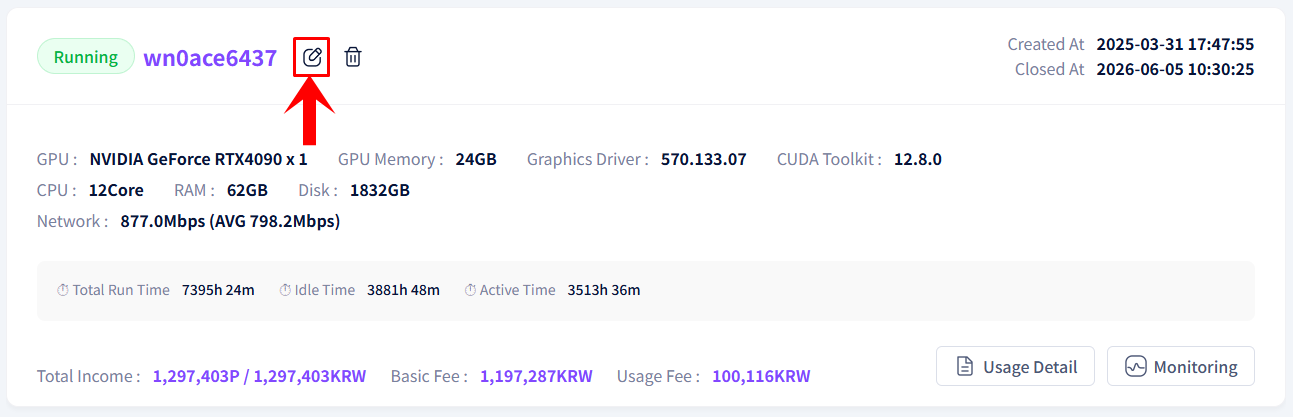
- Click the Edit Node Price button on the shared GPU information screen.
- Enter your desired amount in the hourly usage fee field.
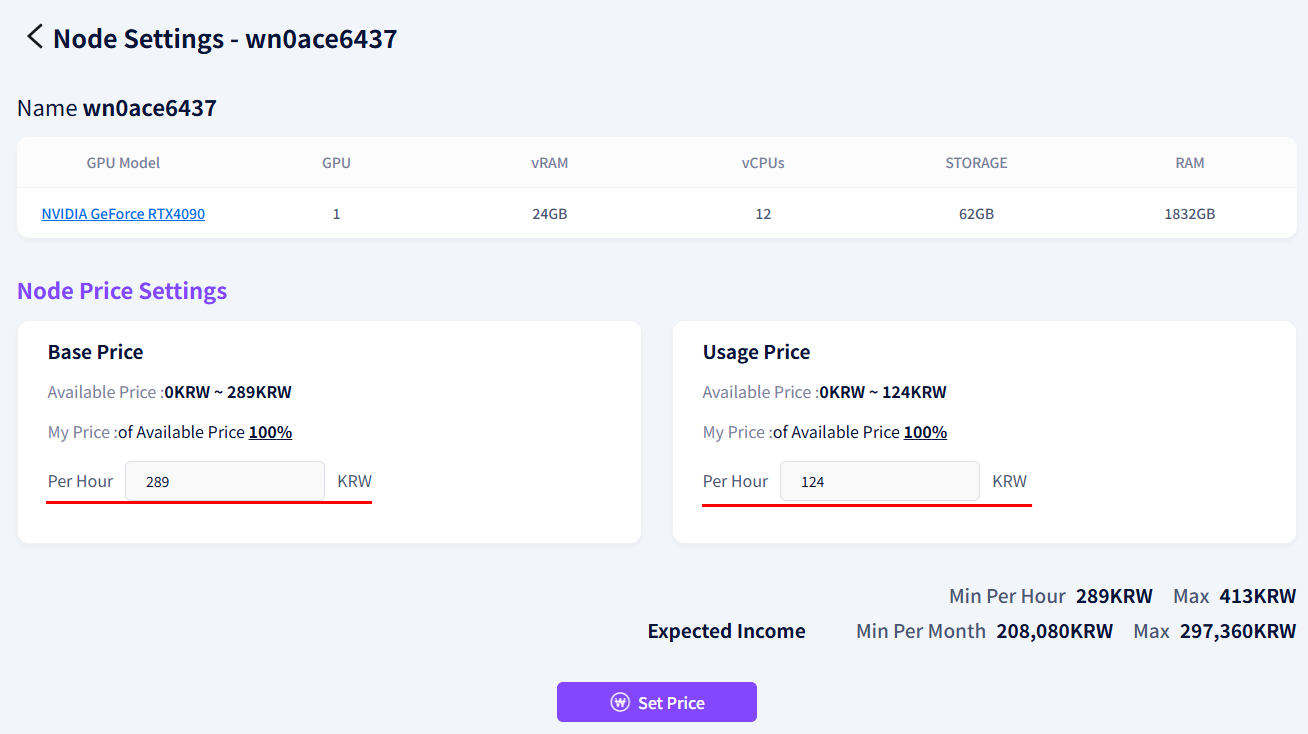
- Click the Set Price button.
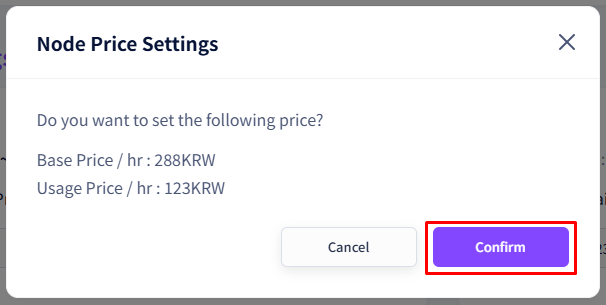
- Confirm the entered amount in the confirmation popup, then click the Set Price button to complete.
Input Guidelines
| Status | Message Displayed | Action |
|---|---|---|
| Amount same as default | Same as the default value. | Enter a different amount |
| Amount exceeds or falls below the allowed range | Price range guidance message displayed | Re-enter an amount within the indicated range |
Warning
If the entered amount is outside the allowed range, it will not be saved. Check the message and enter an amount within the valid range. To cancel the edit, click the Cancel button to return to the previous screen.