Storage Management
Set up container image registry credentials and personal backup storage.
Tip
Two settings are available in Storage Management: [Container Image Registry Credential Registration] [Personal Backup Storage Connection]
How to Access Storage Management
- Click the arrow next to your name in the upper right corner, then click Storage Management.
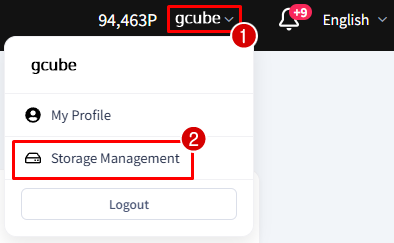
- Two sections will be displayed: Container Image Registry Credential Registration and Personal Backup Storage Connection.
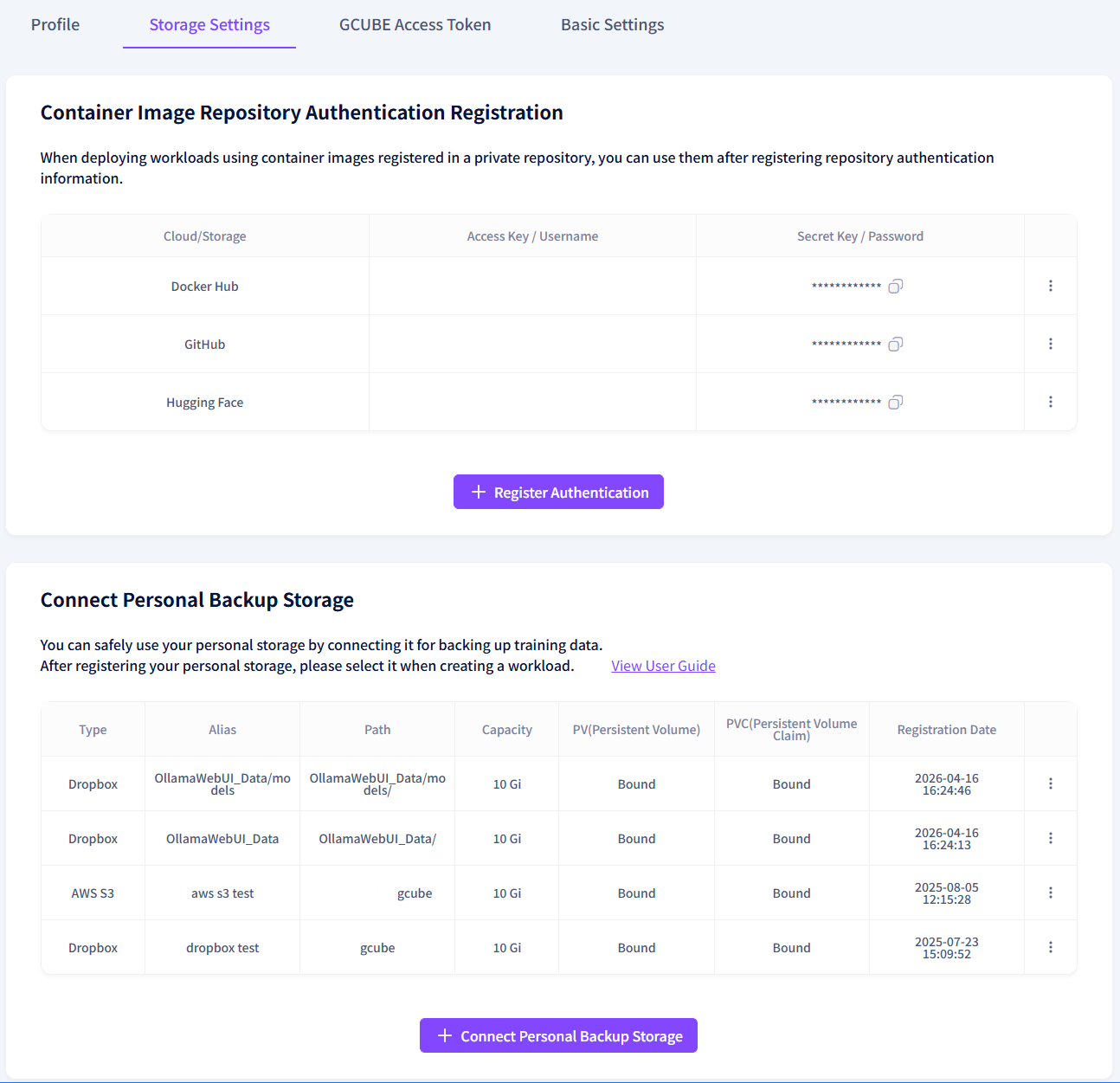
Container Image Registry Credential Registration
To use container images from a private registry in your workload, you must register the credentials first.
- Click the + Register Credential button.
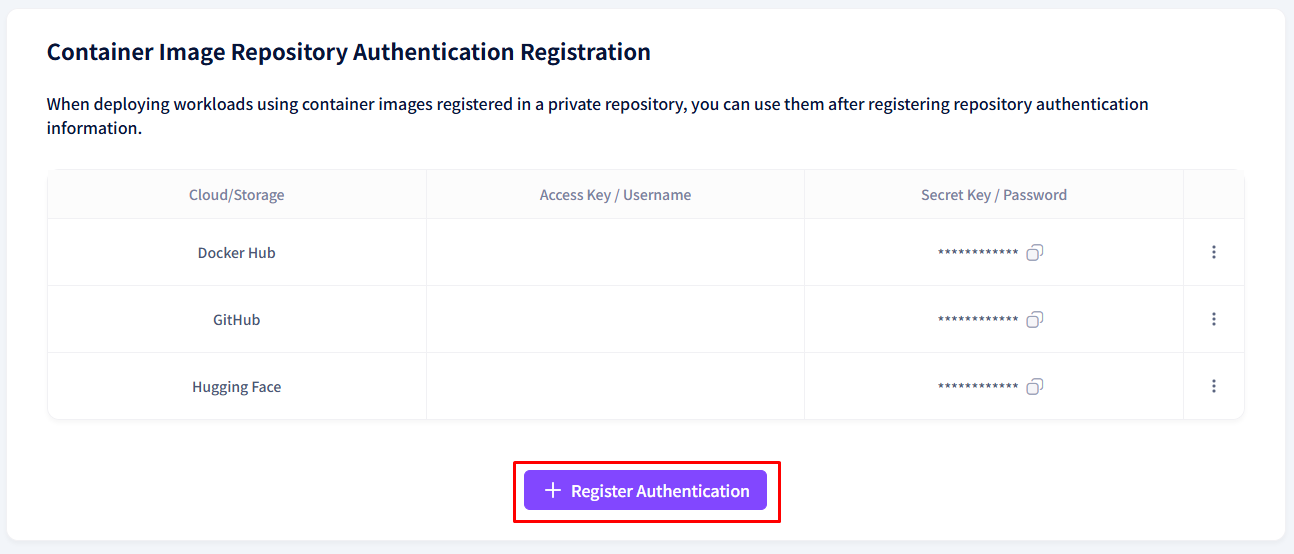
- Select the registry provider and enter the required information.
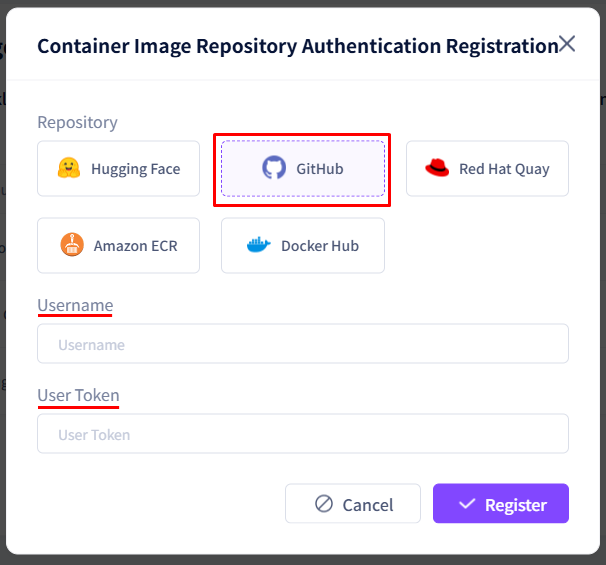
- Click the Register button to complete.
Registered credentials can be updated using the Edit button.
Personal Backup Storage Connection
To preserve data when a workload is terminated, connect a personal storage service (Dropbox, AWS S3, etc.).
- Click the + Connect Personal Backup Storage button.
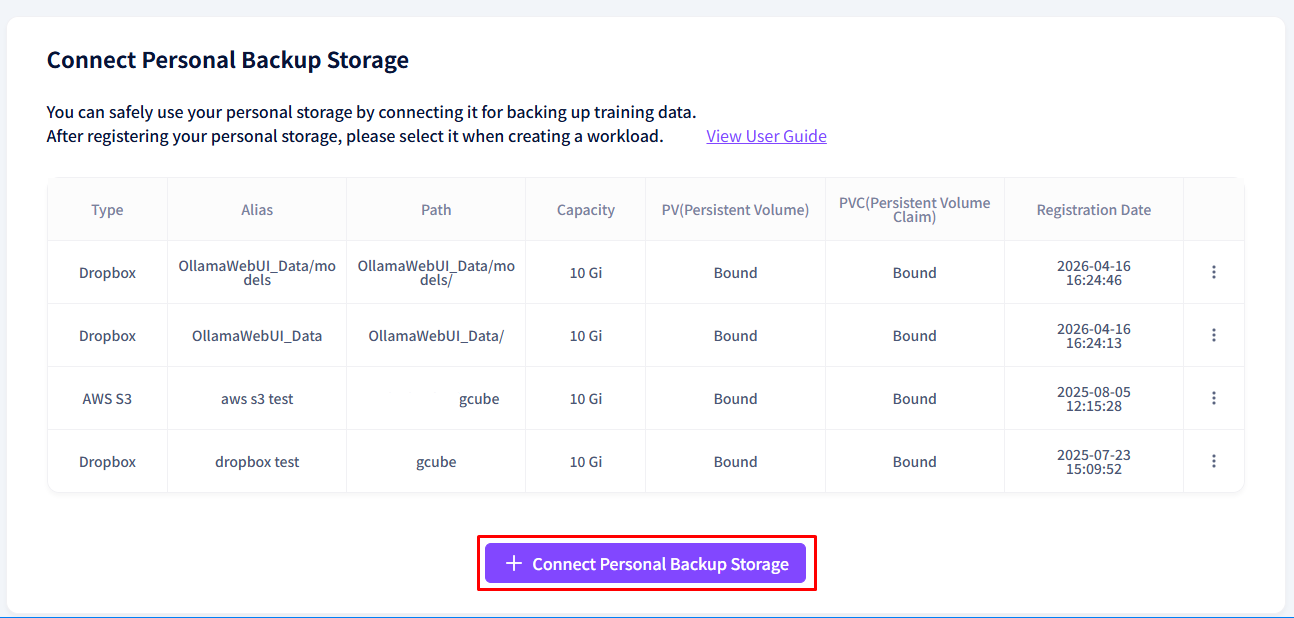
- Select the type and storage provider.
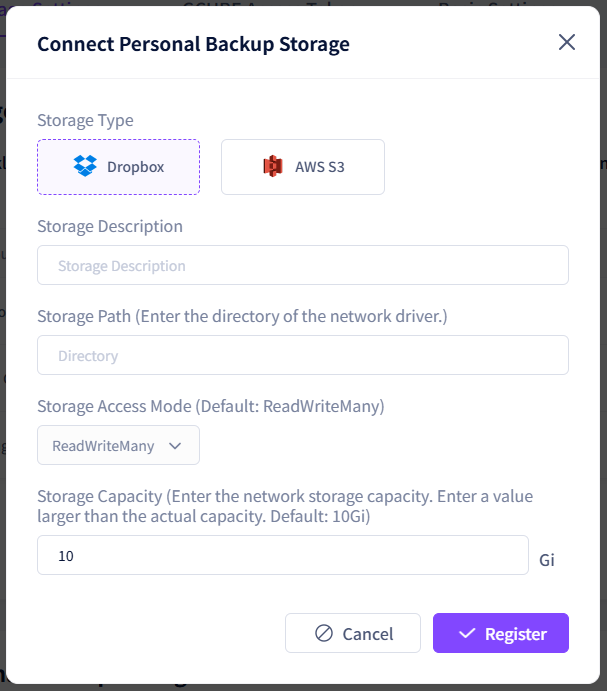
-
Enter the required credentials.
Storage Required Information Dropbox Dropbox account authentication (OAuth) AWS S3 IAM Access Key, Secret Access Key, Bucket Region -
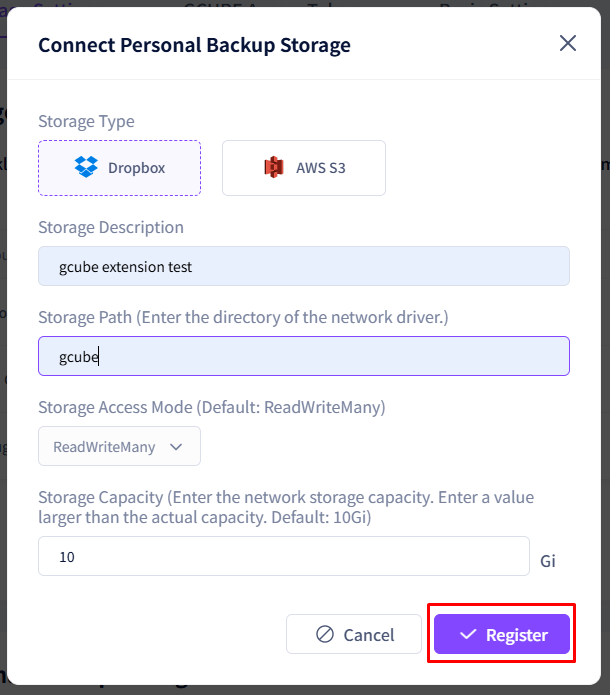
Set the storage description and the mount path inside the container.
Example: /data/data → The path where the storage is mounted inside the container.
Files can be read and written at this location. -
Click the Register button to complete.
Warning
When registering a workload, make sure to select this storage under the Personal Storage field so that data is actually backed up.