Workload SSH Terminal Access
Connect directly to a deployed workload container via SSH.
Tip
SSH terminal access allows you to run commands directly inside the container. You can download models, install packages, check logs, and more.
Before You Begin
- The workload must be in Deployed status.
- Choose one of the two connection methods below.
| Method | Description |
|---|---|
| Built-in Terminal SSH | No installation required. Supports Windows 10 build 1809 or later, macOS, and Linux |
| External SSH Client | GUI-based program for users who are not familiar with terminals |
Check Connection Info
-
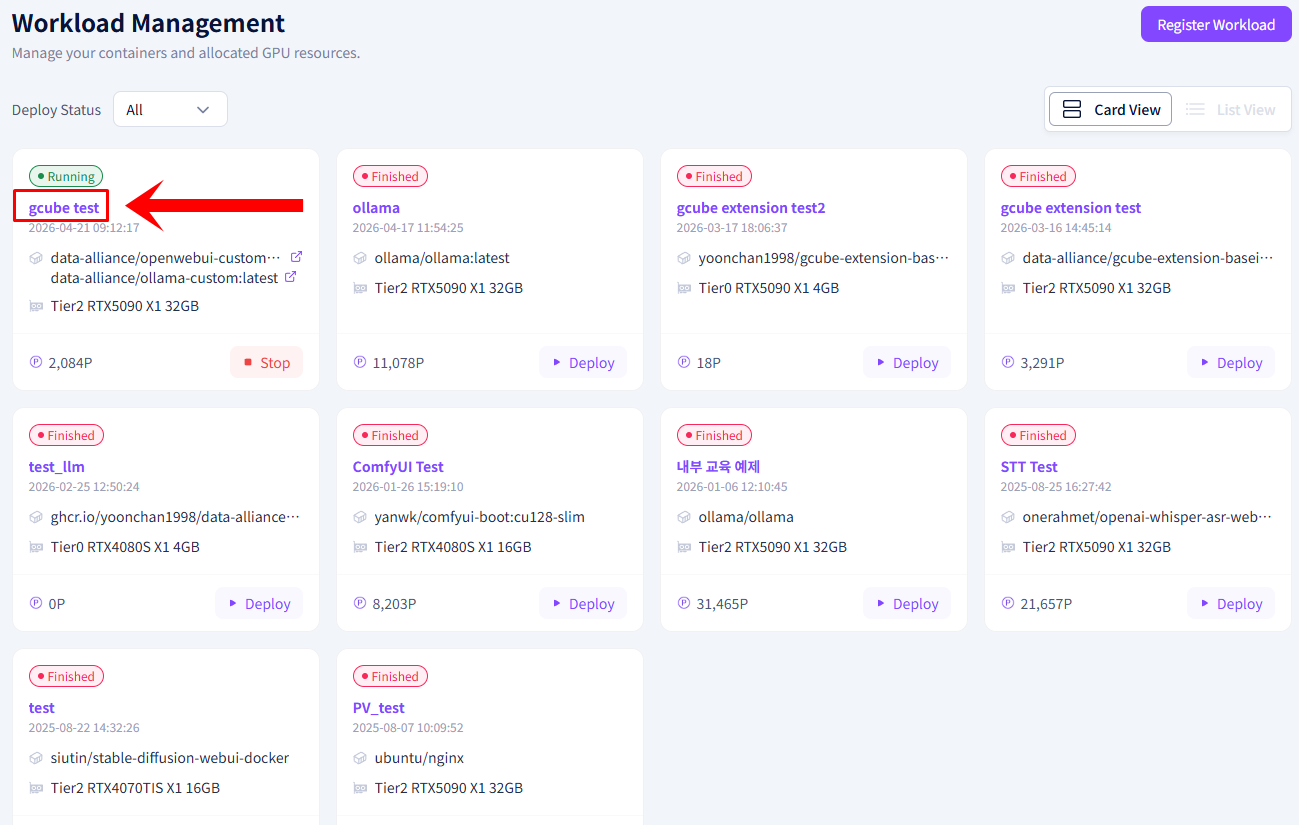
Click the workload you want to connect to in the workload list to go to its detail page.
-
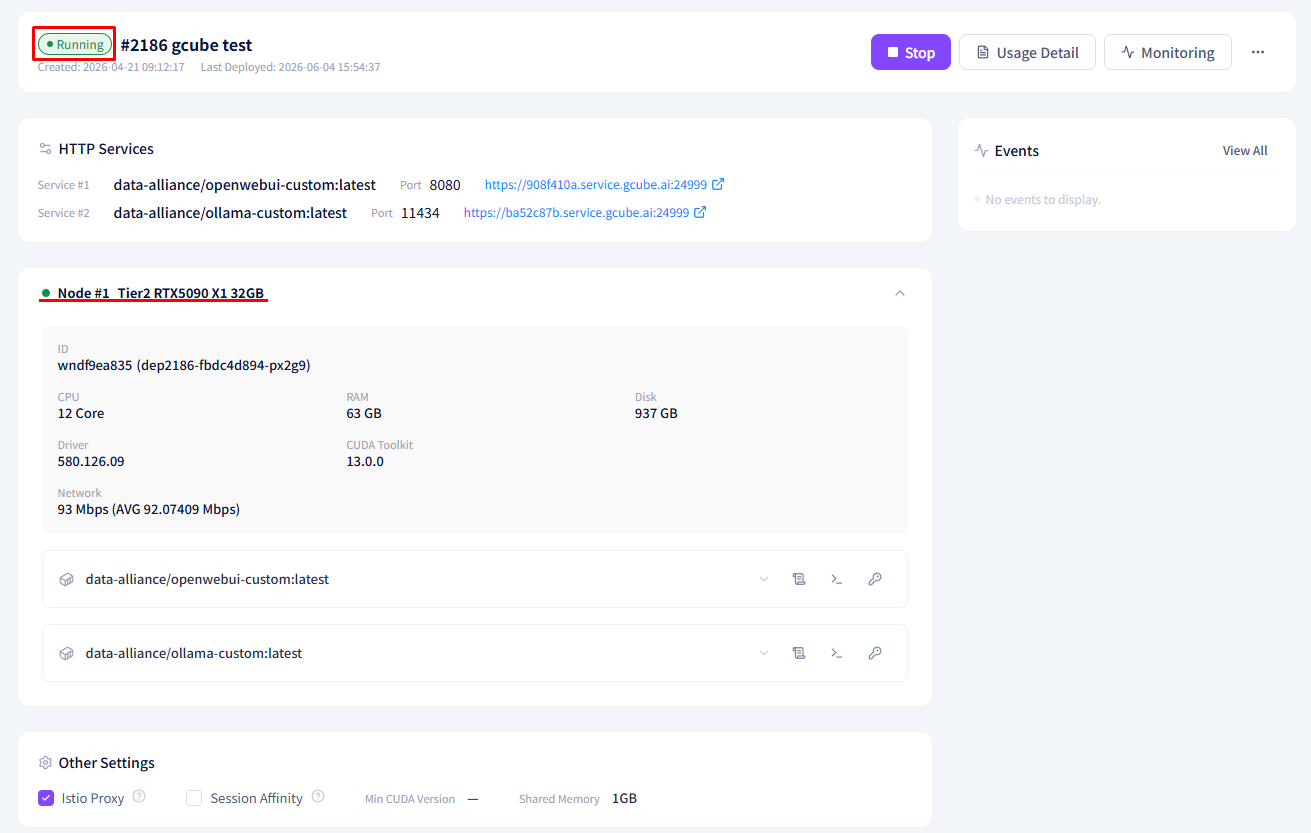
Confirm the pod status is Running in the Deployment Status tab.
-
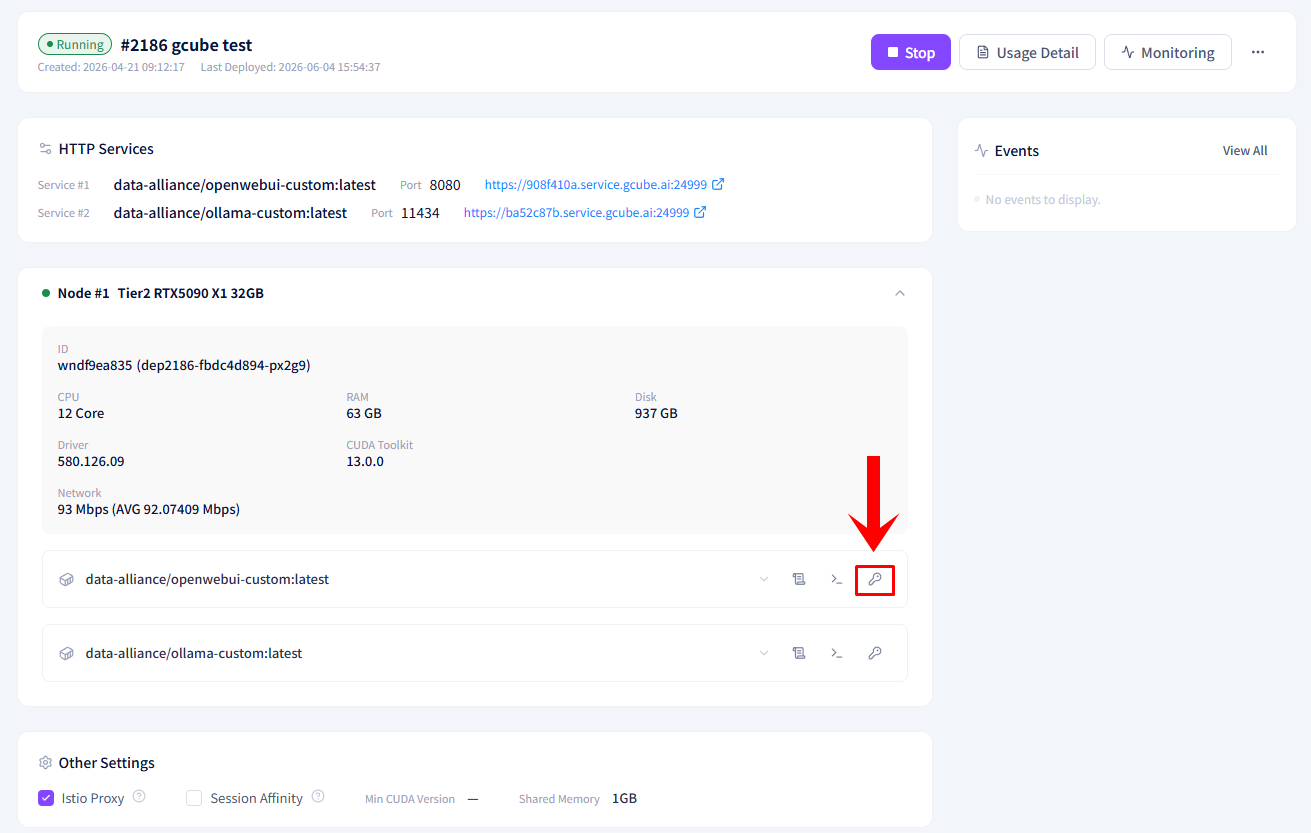
Click the Container SSH button.
-
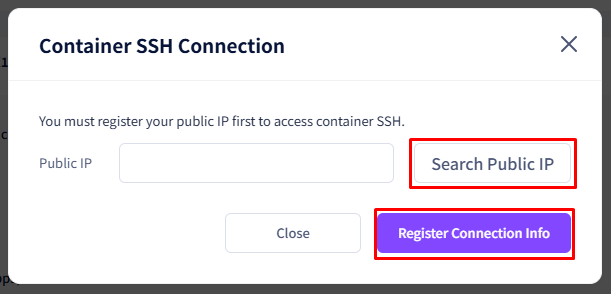
Look up your public IP and register the connection info.
-
Check the following information in the SSH connection info popup.
Item Description SSH Access Address Domain address used for SSH connection SSH Access Port SSH connection port number Public IP Address Server public IP address Username SSH login account name Password SSH login password 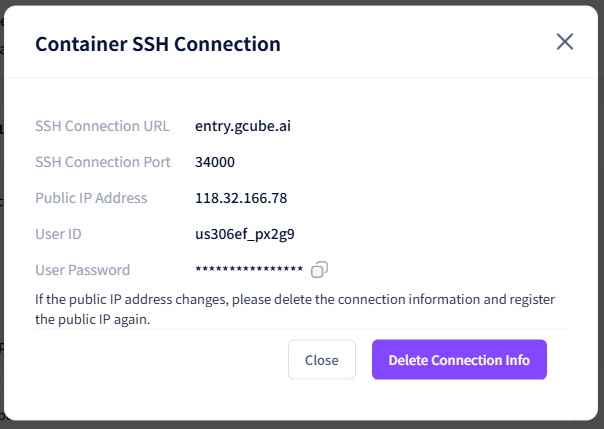
Warning
If the public IP address changes, delete the connection info and re-register the public IP.
How to Connect via SSH
Method 1 — Built-in Terminal SSH (Windows / macOS / Linux)
-
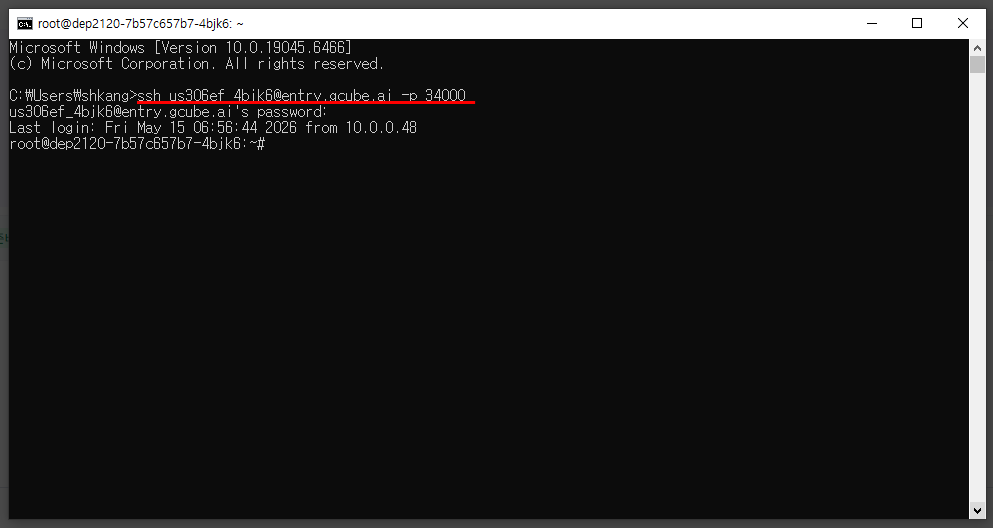
Open a terminal (Command Prompt, PowerShell, or Terminal) and enter the following command.
Example:
-
Enter your password to complete the connection. (The password will not be displayed as you type.)
Method 2 — External SSH Client
If you are not familiar with terminals, you can use a GUI-based external SSH client. Commonly used programs are listed below.
| Program | Platform | Cost | Download |
|---|---|---|---|
| PuTTY | Windows | Free | putty.org |
| MobaXterm | Windows | Free (Home Edition) | mobaxterm.mobatek.net |
| Bitvise SSH Client | Windows | Free | bitvise.com |
| Termius | Windows / macOS / Linux | Free (Starter plan, some features require paid plan) | termius.com |
PuTTY Connection Example
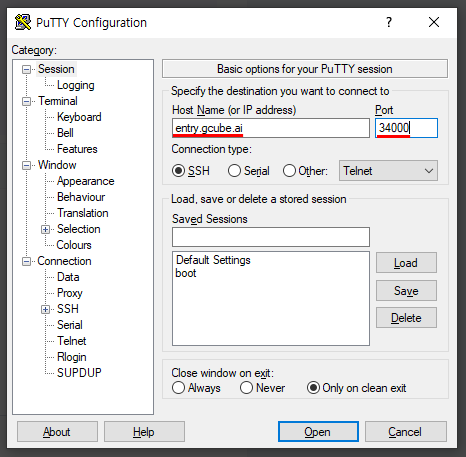
- Launch PuTTY.
- Enter the SSH access address (e.g.,
entry.gcube.ai) in Host Name and the SSH access port (e.g.,34000) in Port. - Set Connection type to SSH and click Open.
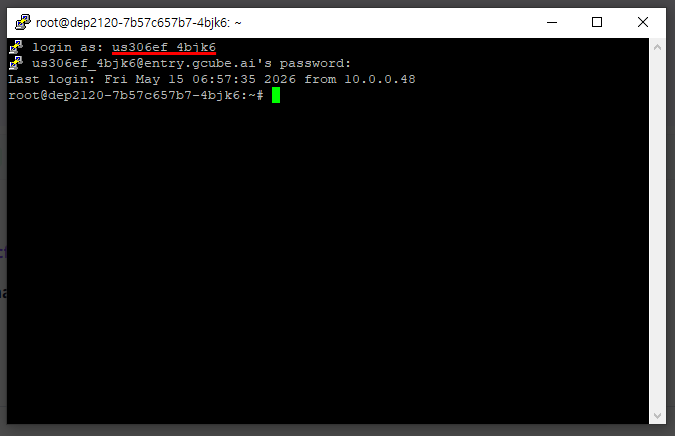
- Enter your username at
login as:, then enter your password. (The password will not be displayed as you type.)
Post-Connection Usage Examples
| Task | Command Example |
|---|---|
| Download AI model | ollama pull deepseek-r1:8b |
| Install package | pip install [package name] |
| Check container logs | tail -f /var/log/[service name].log |
| Check GPU status | nvidia-smi |
| Check processes | ps aux |
Warning
Do not share your SSH credentials (password) externally. Connection info may change when the workload is redeployed.