Ollama User Guide - External API Version
Before You Begin
The following items must be ready before following this guide.
| Item | Description |
|---|---|
| gcube account | Sign up at gcube.ai |
| Credit balance | GPU usage costs apply on the gcube platform (billed hourly) |
Overview
What is Ollama?
Ollama is a platform that lets you download and run open-source AI language models in a local environment. This guide walks you through running Ollama on gcube's cloud GPU environment and using the DeepSeek model via Chatbox WebUI.
Representative AI models available in Ollama:
| Model | Developer | Features |
|---|---|---|
| Llama 3 | Meta | Excellent natural language processing |
| Phi 3 | Microsoft Research | Strong reasoning and language understanding |
| Mistral | Mistral AI | Optimized for various language tasks |
| Gemma 2 | Strong at natural language processing and generation | |
| CodeGemma | Specialized in code generation and completion |
Step 0 — Create and Log In to gcube Account
0-1. Sign Up
Go to https://gcube.ai and click the "Sign Up" button in the upper right. Complete email verification to create your account.
0-2. Log In
After signing up, log in on the same page.
0-3. Check Credits
gcube charges based on GPU usage time. Check your credit balance on the dashboard before use.
Billing Notice
Workloads are billed hourly from the time of deployment until stopped. Always stop the workload after use. Refer to Workload - Stop Workload for instructions.
Step 1 — Register Workload on gcube
1-1. Access Workload Page
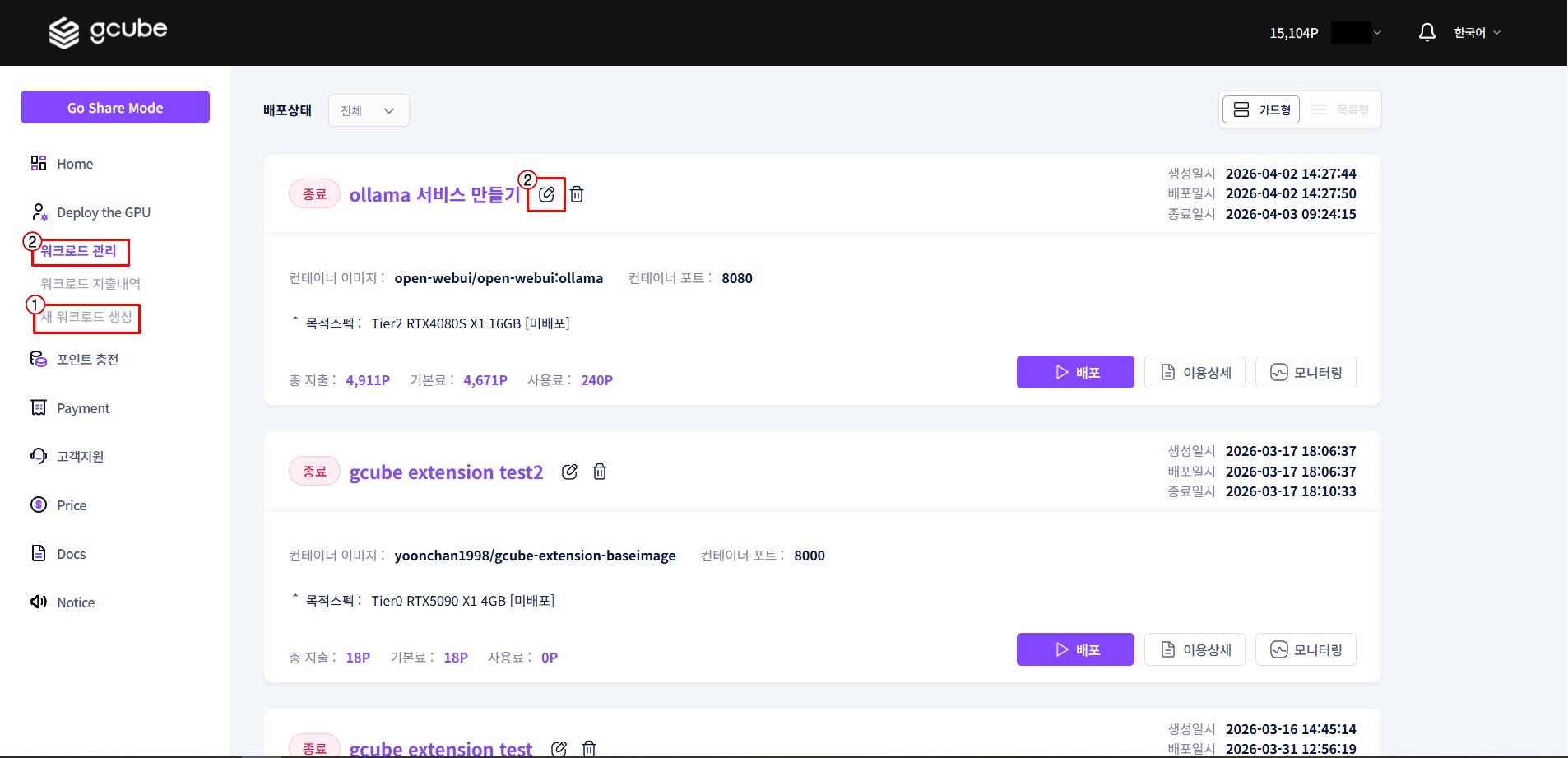
Go to https://gcube.ai/ko/demand/workload/list.
① Register a new workload or ② select an existing one to modify.
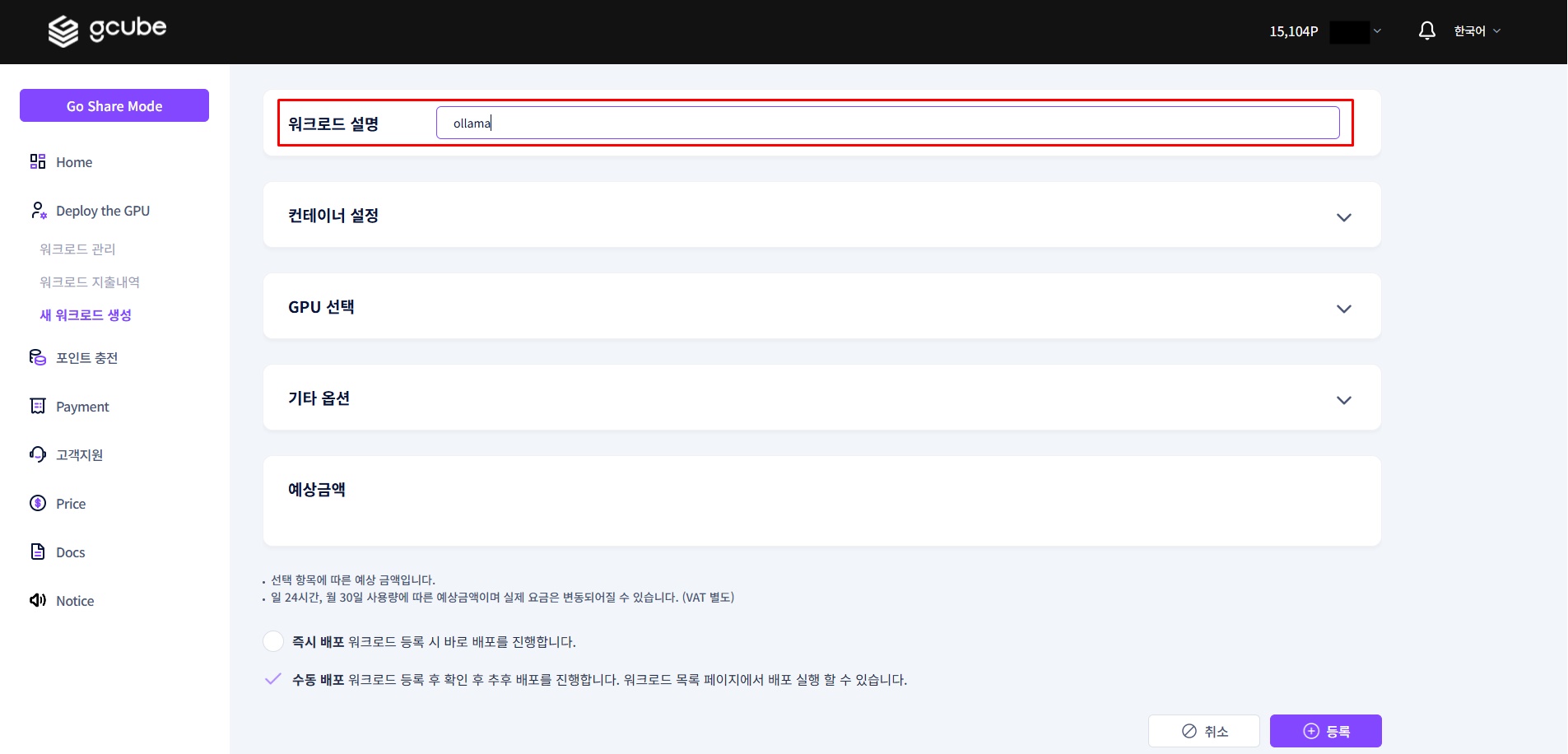
1-2. Enter Description
Enter the workload name.
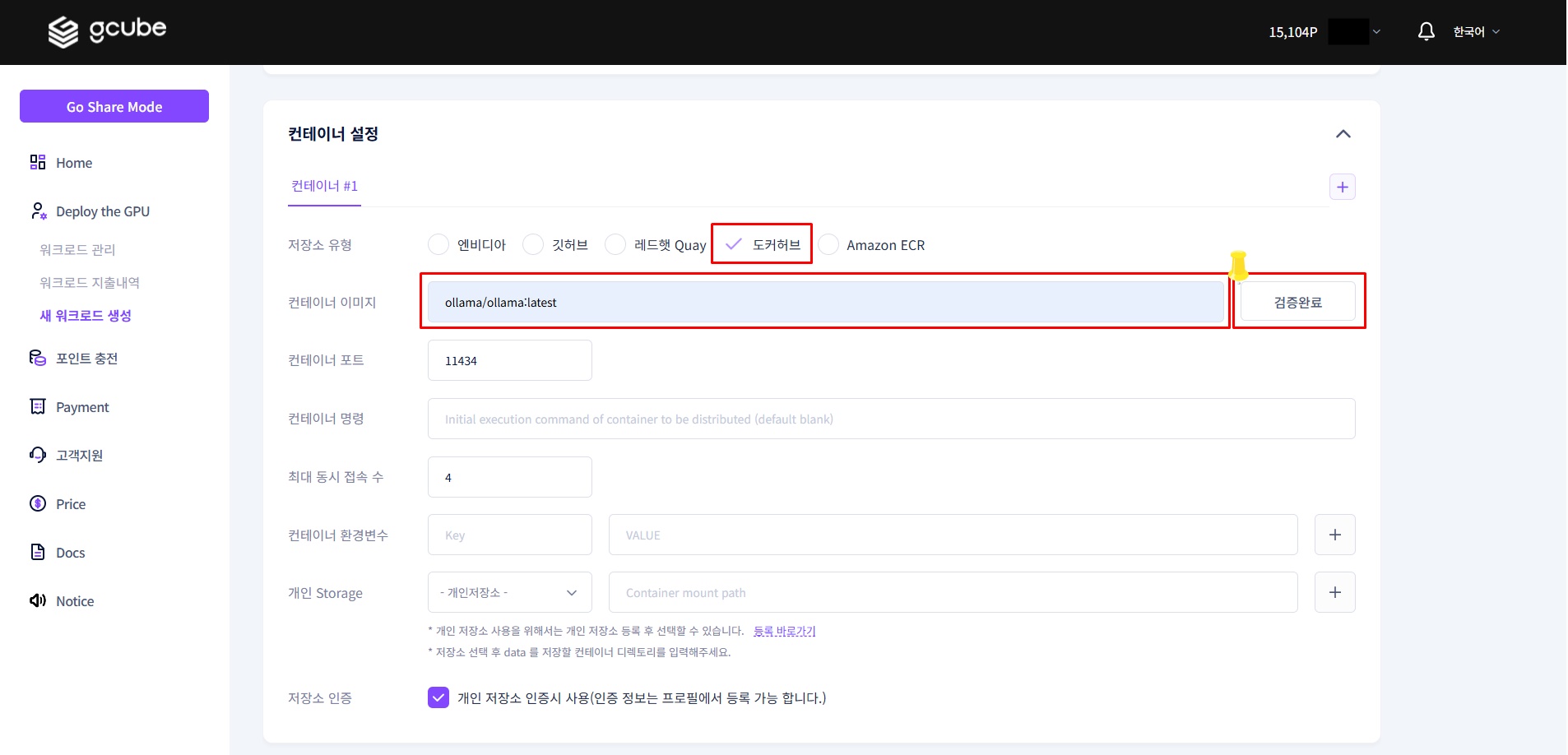
1-3. Container Settings
Enter the following in order.
| Item | Value |
|---|---|
| Registry Type | Docker Hub |
| Container Image | ollama/ollama:latest |
| Container Port | 11434 |
Tip
After entering the container image, click Validate Image next to it.
Once validation is complete, the container port (11434) will be filled in automatically.
Official image reference: https://hub.docker.com/r/ollama/ollama
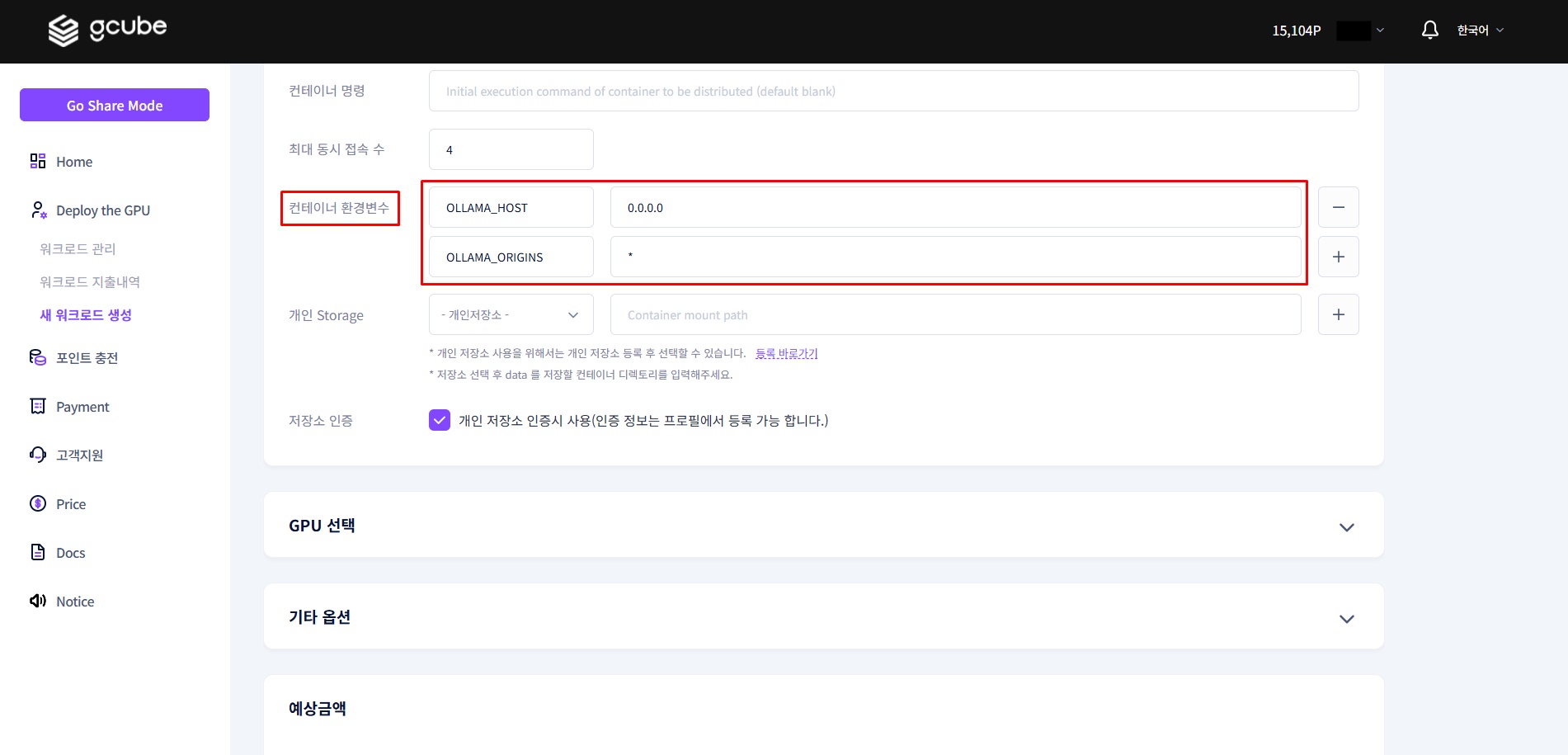
1-4. Environment Variable Settings
Enter the following two environment variables. Both are required.
| Key | Value | Description |
|---|---|---|
OLLAMA_HOST |
0.0.0.0 |
Allow access from all network interfaces (required for external WebUI connection) |
OLLAMA_ORIGINS |
* |
Disable CORS restrictions to allow API calls from external clients such as Chatbox |
1-5. Select GPU Specs
Select the GPU specs that match your use case.
| Tier | Description |
|---|---|
| Tier 1 | High performance |
| Tier 2 | High reliability |
| Tier 3 | Individual users |
Model and GPU Selection Guide
The required GPU memory varies based on model size (number of parameters).
| Model Tag | Parameters | Recommended GPU Memory |
|---|---|---|
| deepseek-r1:1.5b | 1.5B | 4GB or more |
| deepseek-r1:7b | 7B | 8GB or more |
| deepseek-r1:8b | 8B | 8GB or more |
| deepseek-r1:14b | 14B | 16GB or more |
This guide uses the deepseek-r1:8b and Tier 3 — RTX 4070 (12GB) combination for a good balance of performance and speed.
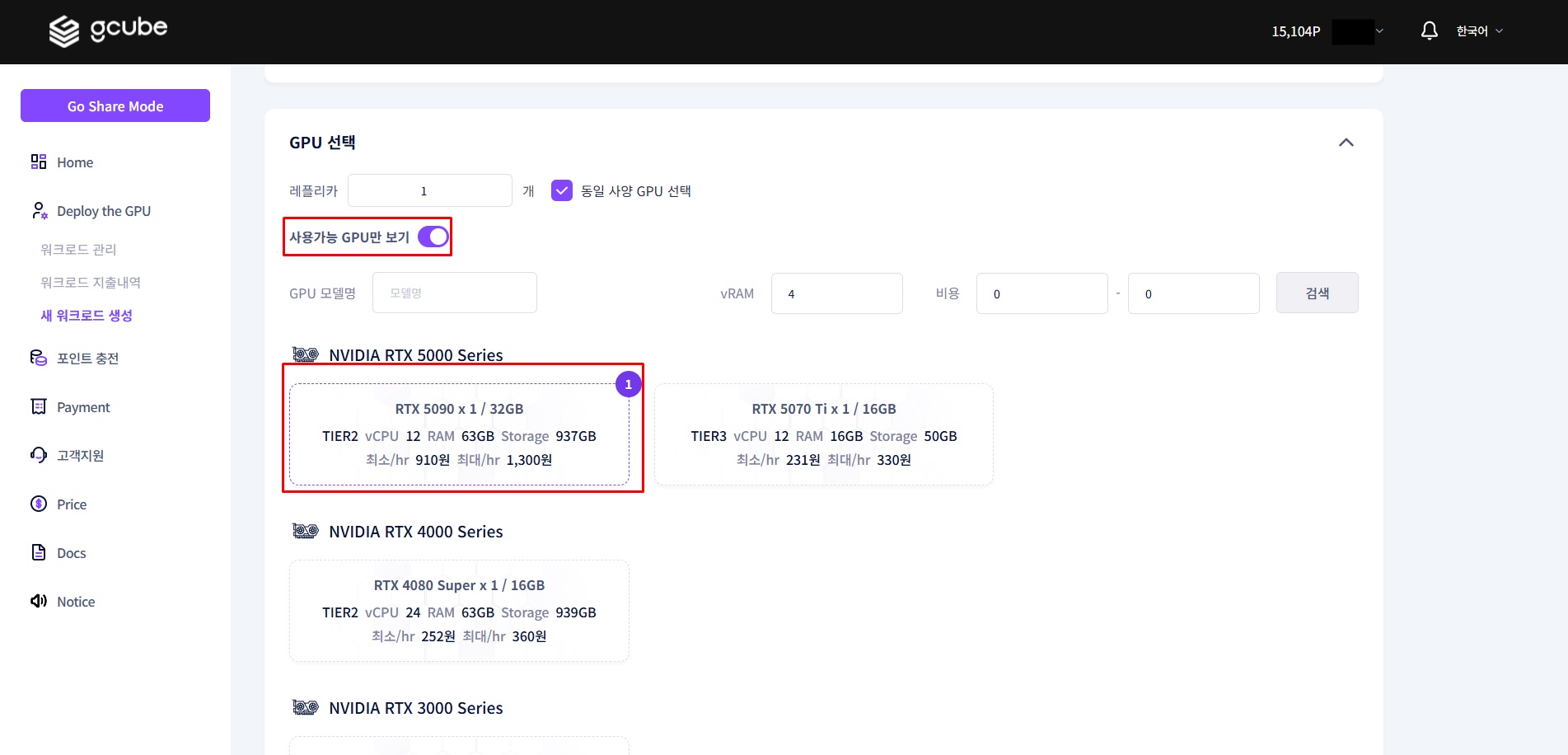
1-6. Final Confirmation and Deploy
Check the estimated hourly cost for the selected specs.
Billing Information
The amount shown is the maximum hourly rate. You are billed proportionally to actual usage time, so always stop the workload after testing.
Select 'Deploy Immediately' and click 'Register' to complete deployment.
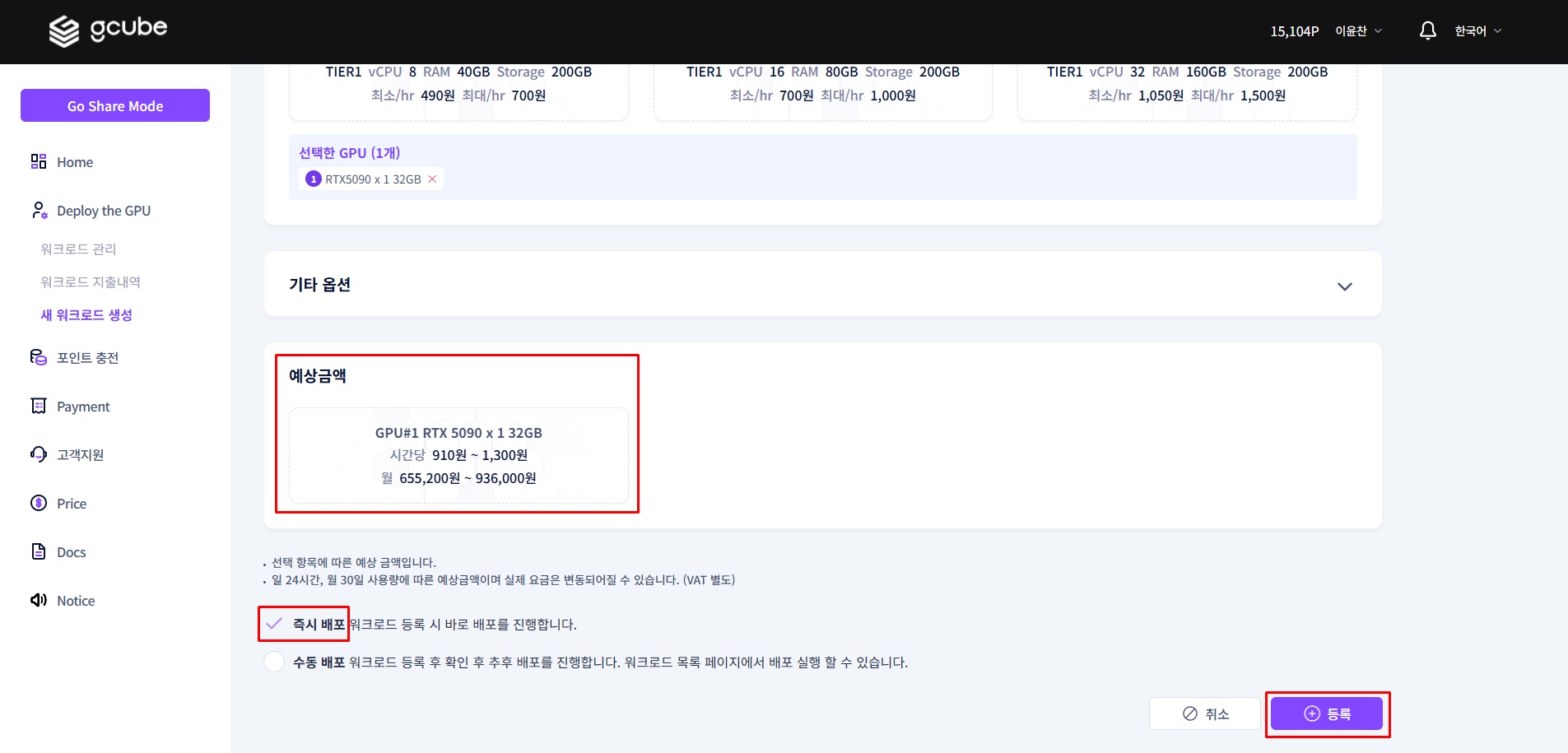
Step 2 — Run DeepSeek Model
2-1. Check Created Workload
Click the workload name on the workload page to enter the detail screen.
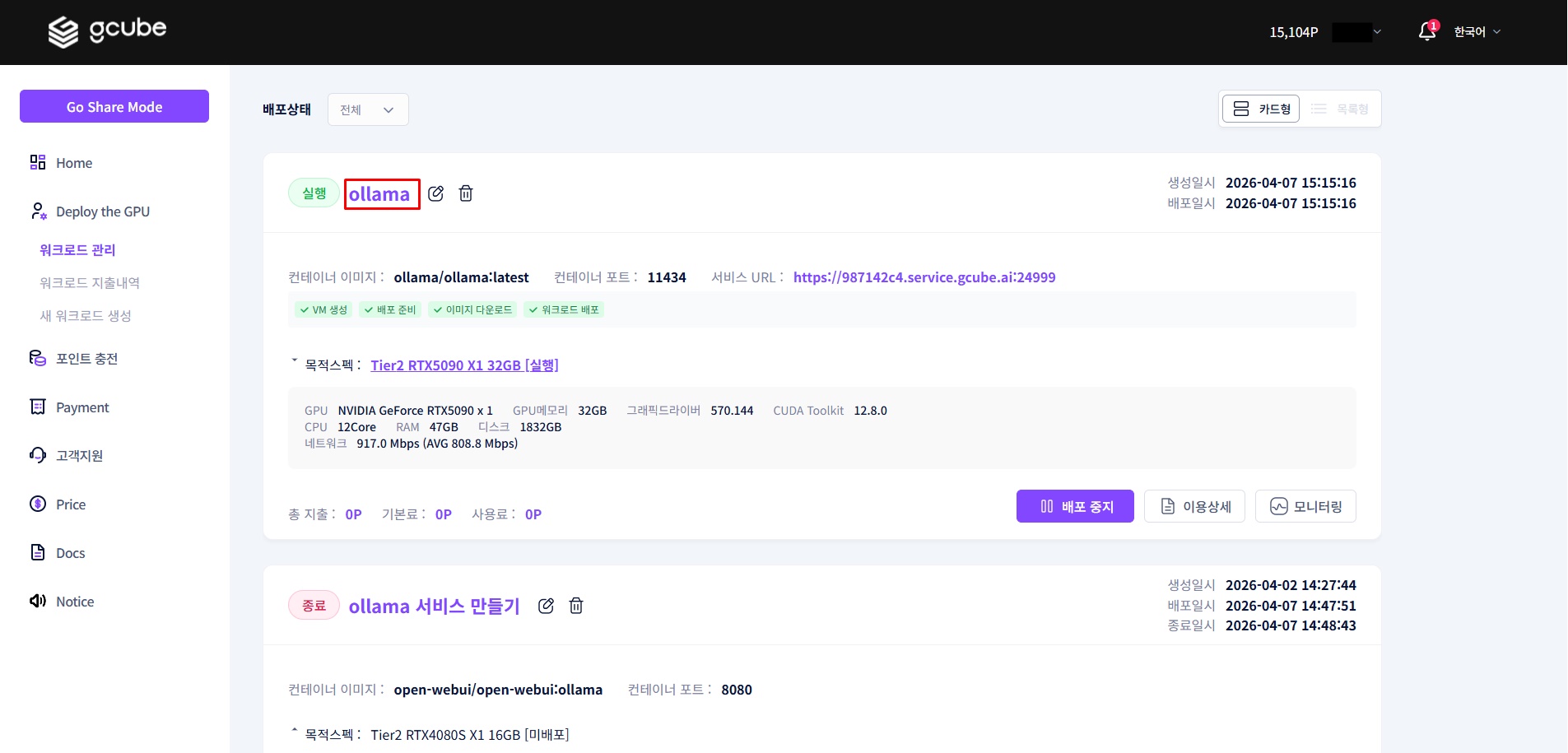
Key items available on the detail screen:
- Overview: Workload number, status, service URL, etc.
- Container: Image, port, creation/deploy/termination timestamps, etc.
- GPU Specs: GPU information, etc.
- Deployment Status: Pod status, container logs, terminal, etc.
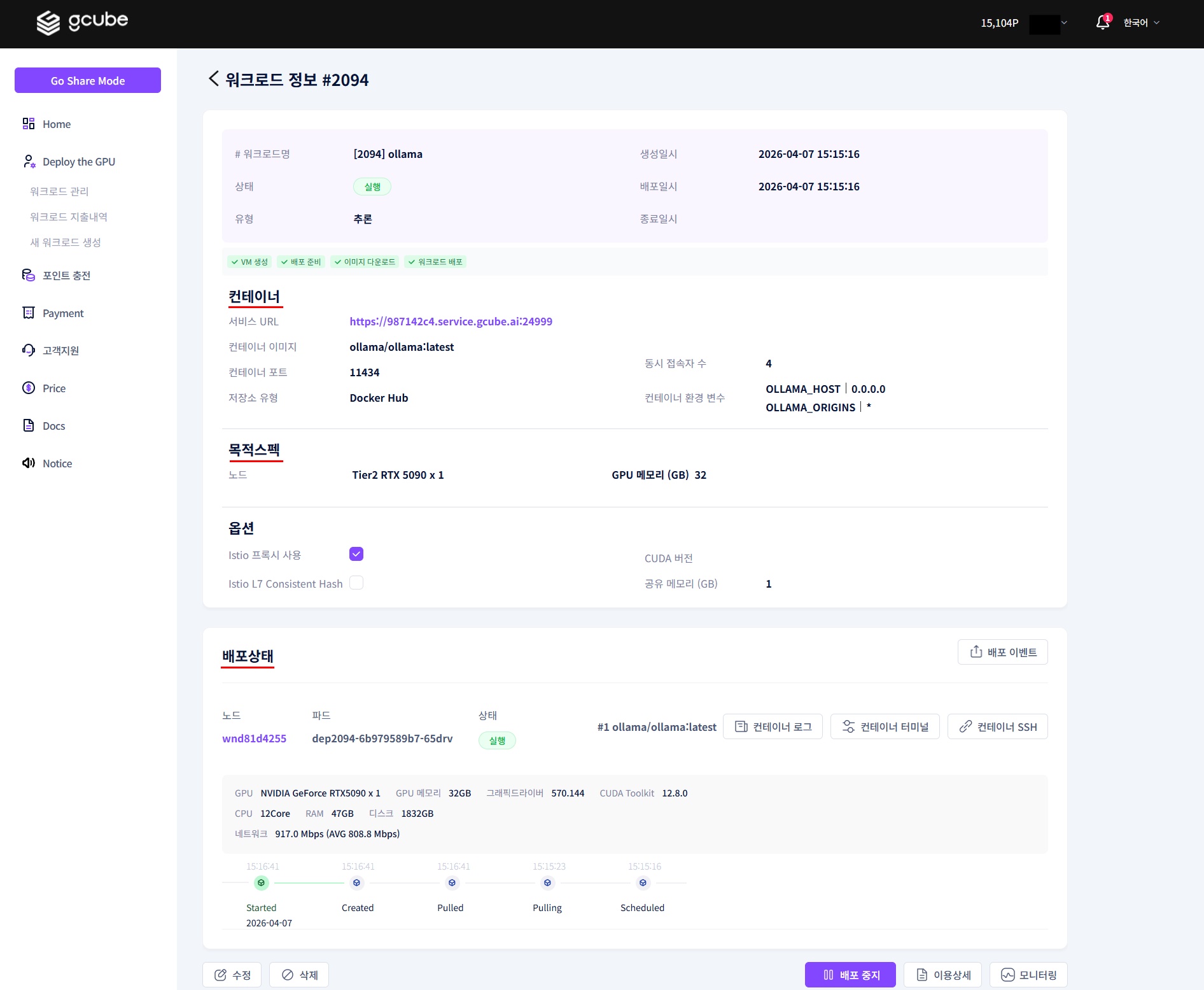
2-2. Launch Container Terminal
When the pod status shows 'Running', click Container Terminal to launch it.
Tip
Immediately after deployment, it may take a few minutes for the pod to be ready. Wait until the status shows 'Running' before proceeding.
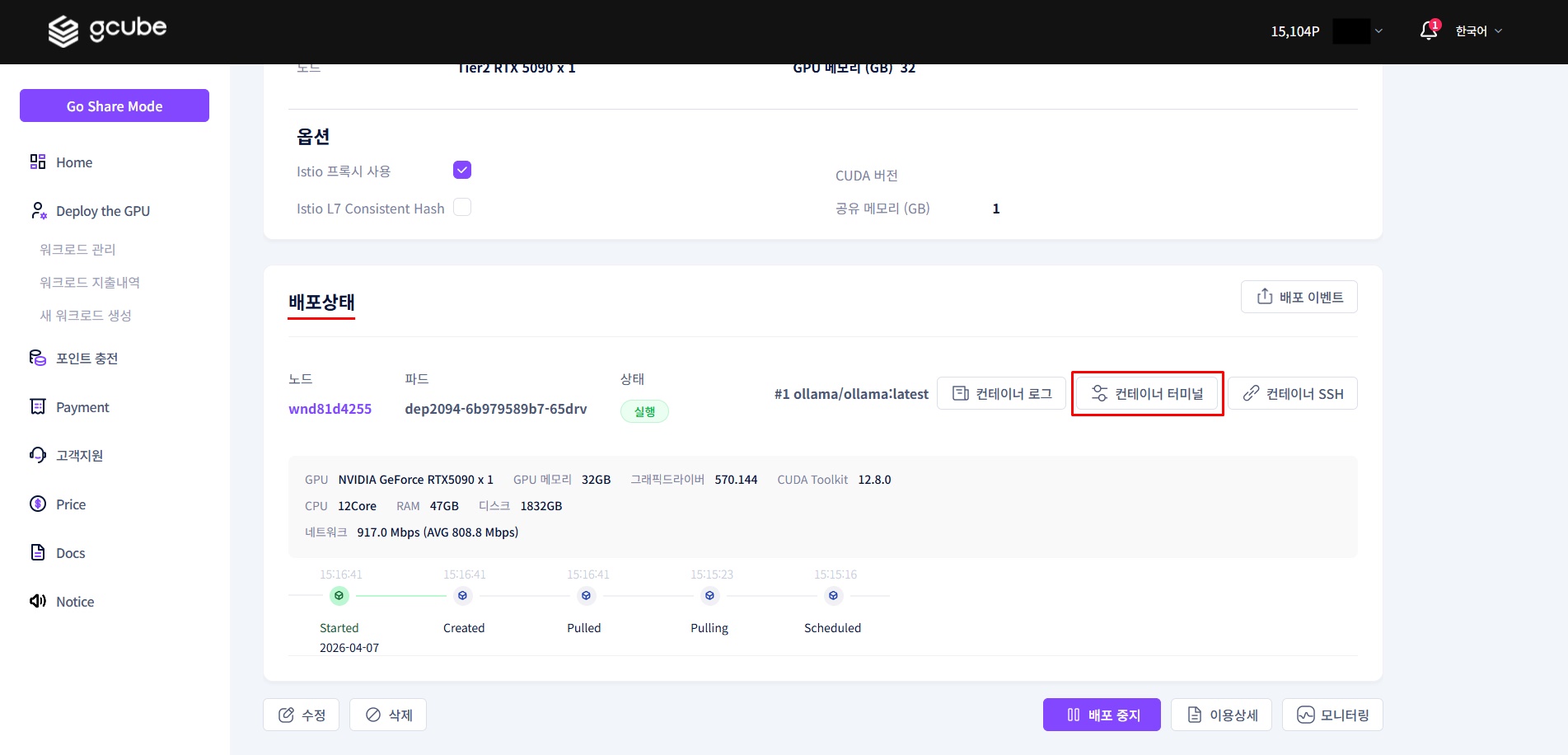
2-3. Download and Run DeepSeek Model
Enter the following command in the terminal. The model is approximately 4.7GB and may take a few minutes to download.
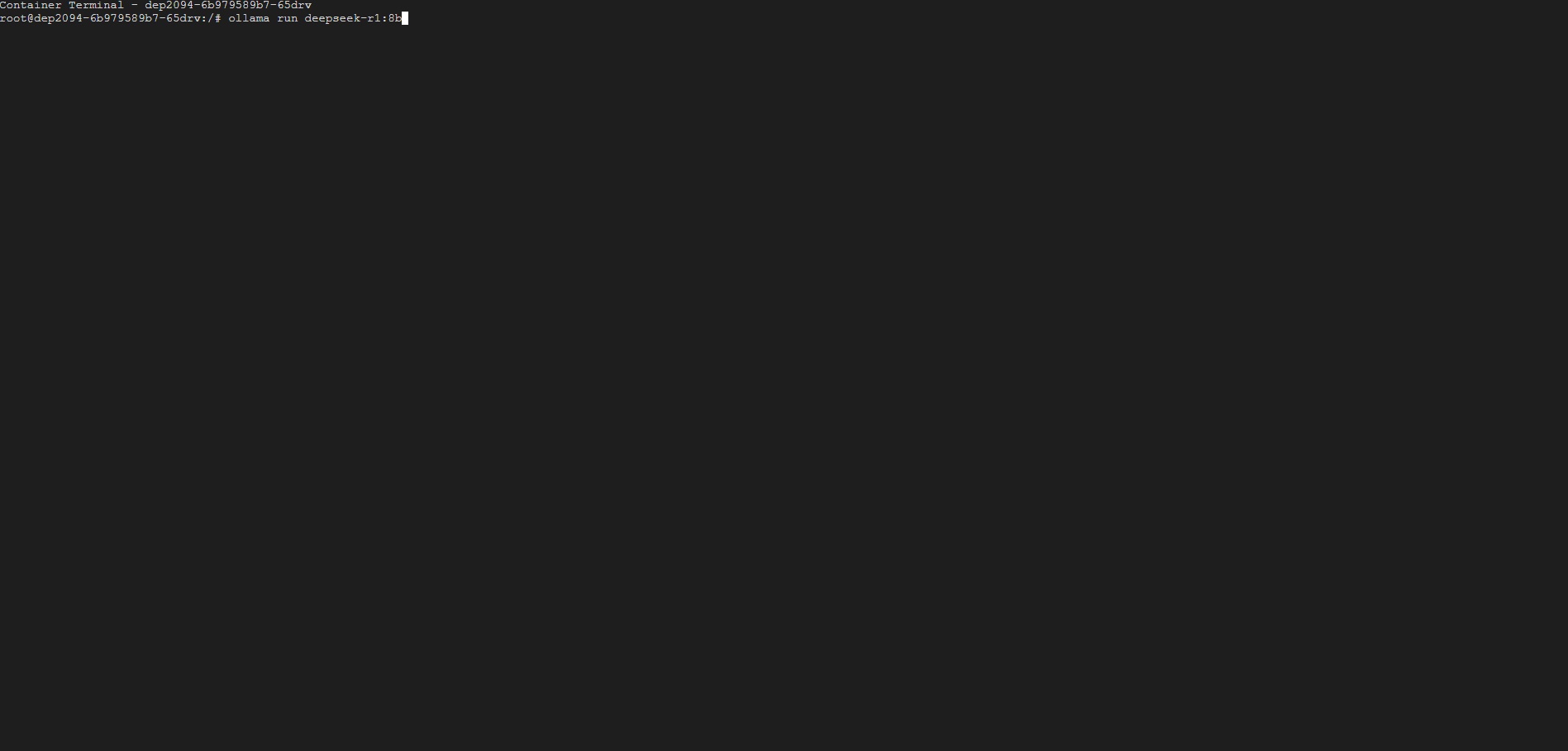
Once the download is complete, the model will start automatically.
Step 3 — Connect DeepSeek via Chatbox WebUI
Chatbox is a WebUI you can use directly in the browser without installation. Enter the gcube workload's service URL as the API host to connect to the running DeepSeek model.
Go to https://web.chatboxai.app/copilots.
3-1. Configure gcube API
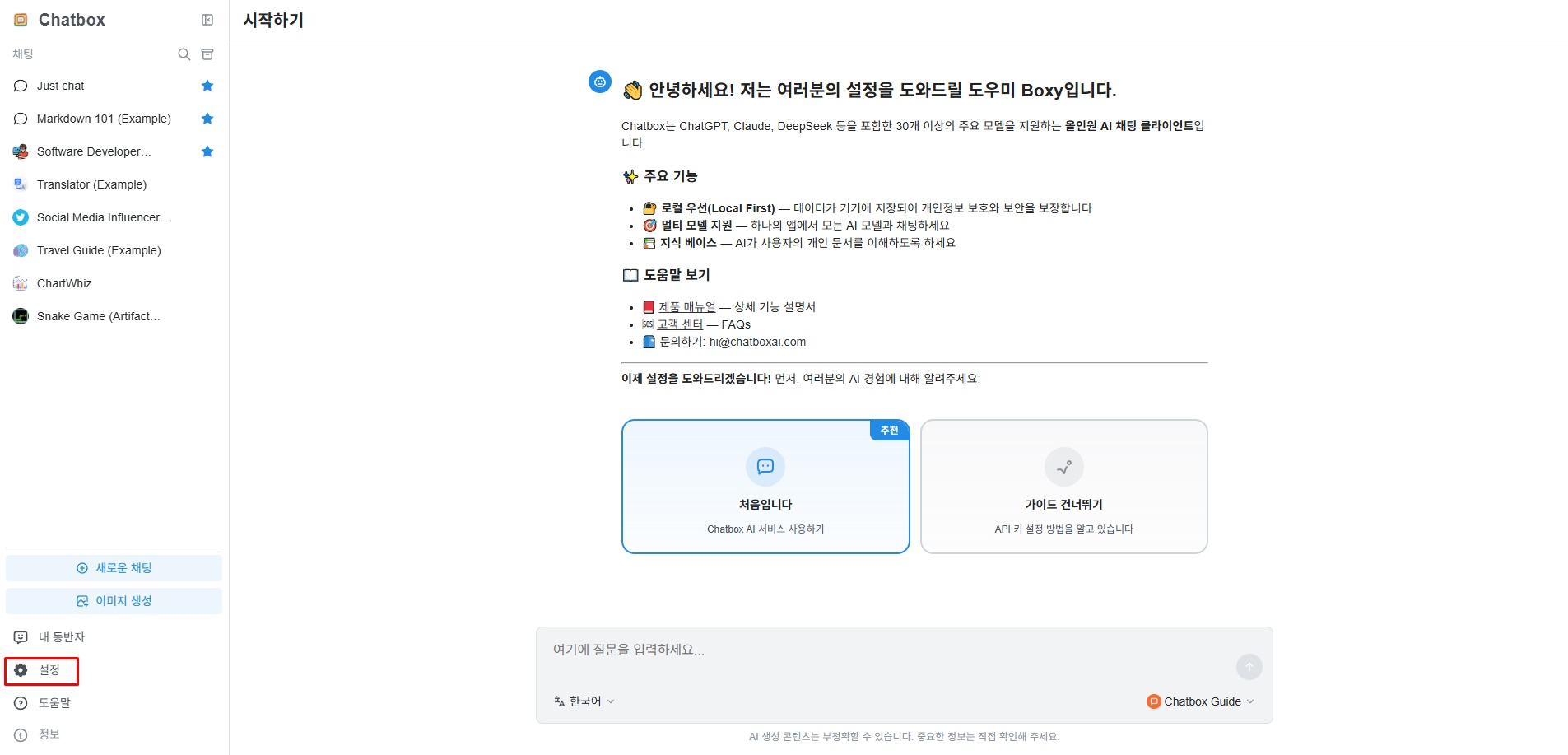
When you first access Chatbox, the following screen appears. Click the "Settings" button at the bottom of the left menu bar.
3-2. Select Ollama API
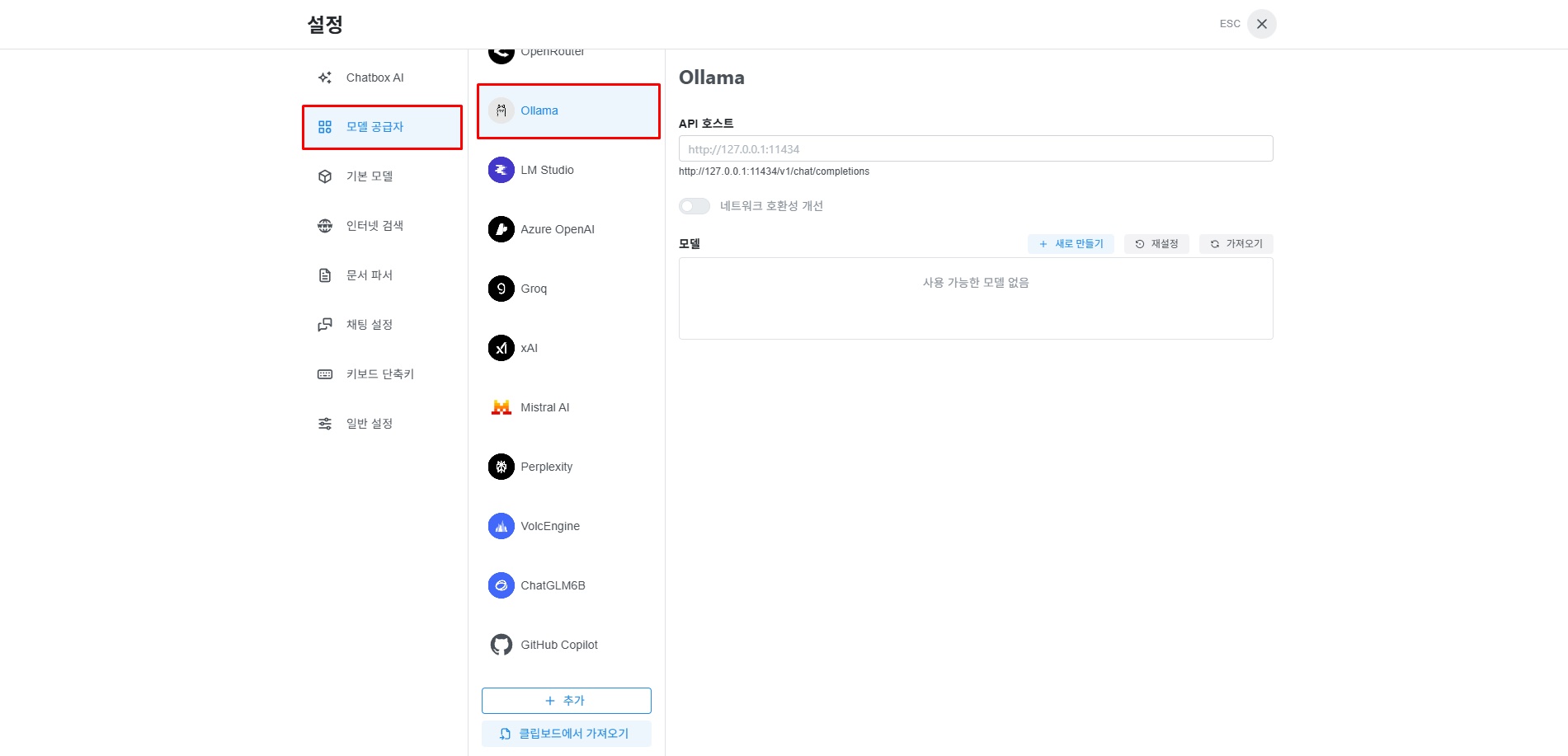
Click "Model Provider" in the settings menu. Then select "Ollama" from the list of AI models.
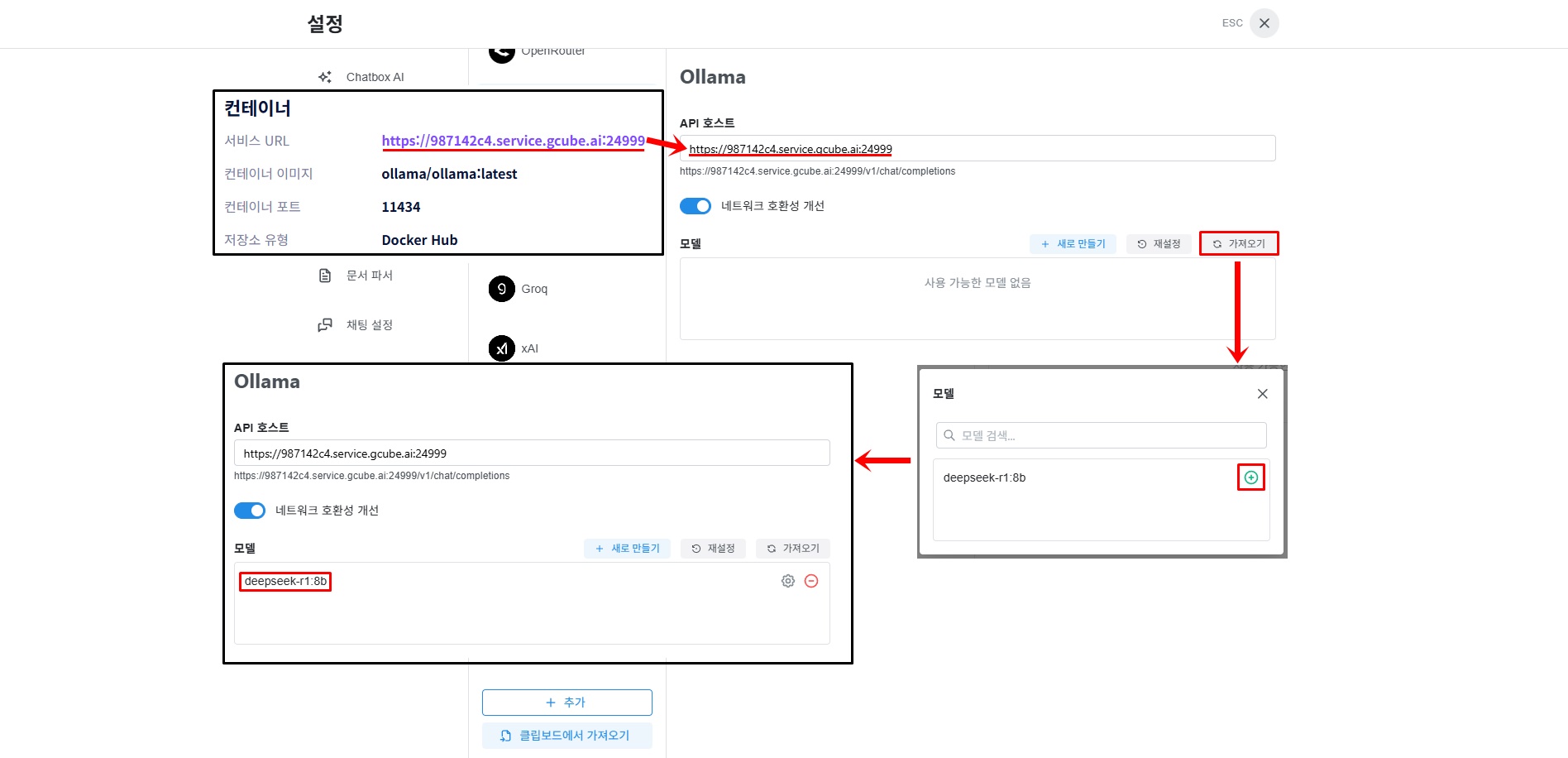
3-3. Enter Service URL and Model
Copy the "Service URL" from the Overview tab of the gcube workload detail screen.
Tip
The service URL is located in the Overview section at the top of the workload detail screen. It takes the form https://xxxxxxxx.gcube.ai.
Paste the copied Service URL into the API Host field. Click "Import" next to the model field — a popup will appear showing the downloaded model. Click the "+" next to the model you want to add, then close the popup to add it.
3-4. Start Using
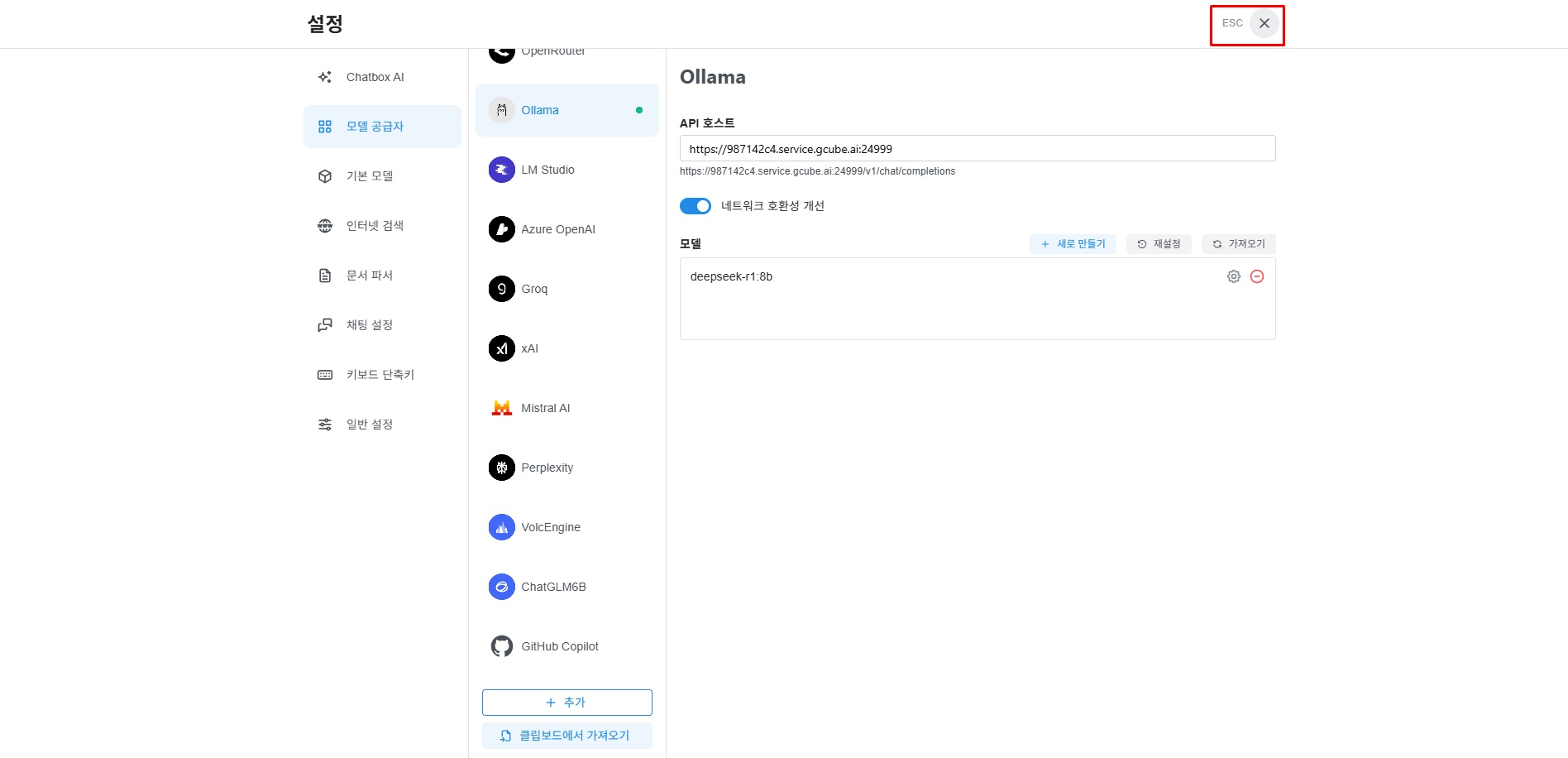
Click "ESC" to return to the main screen.
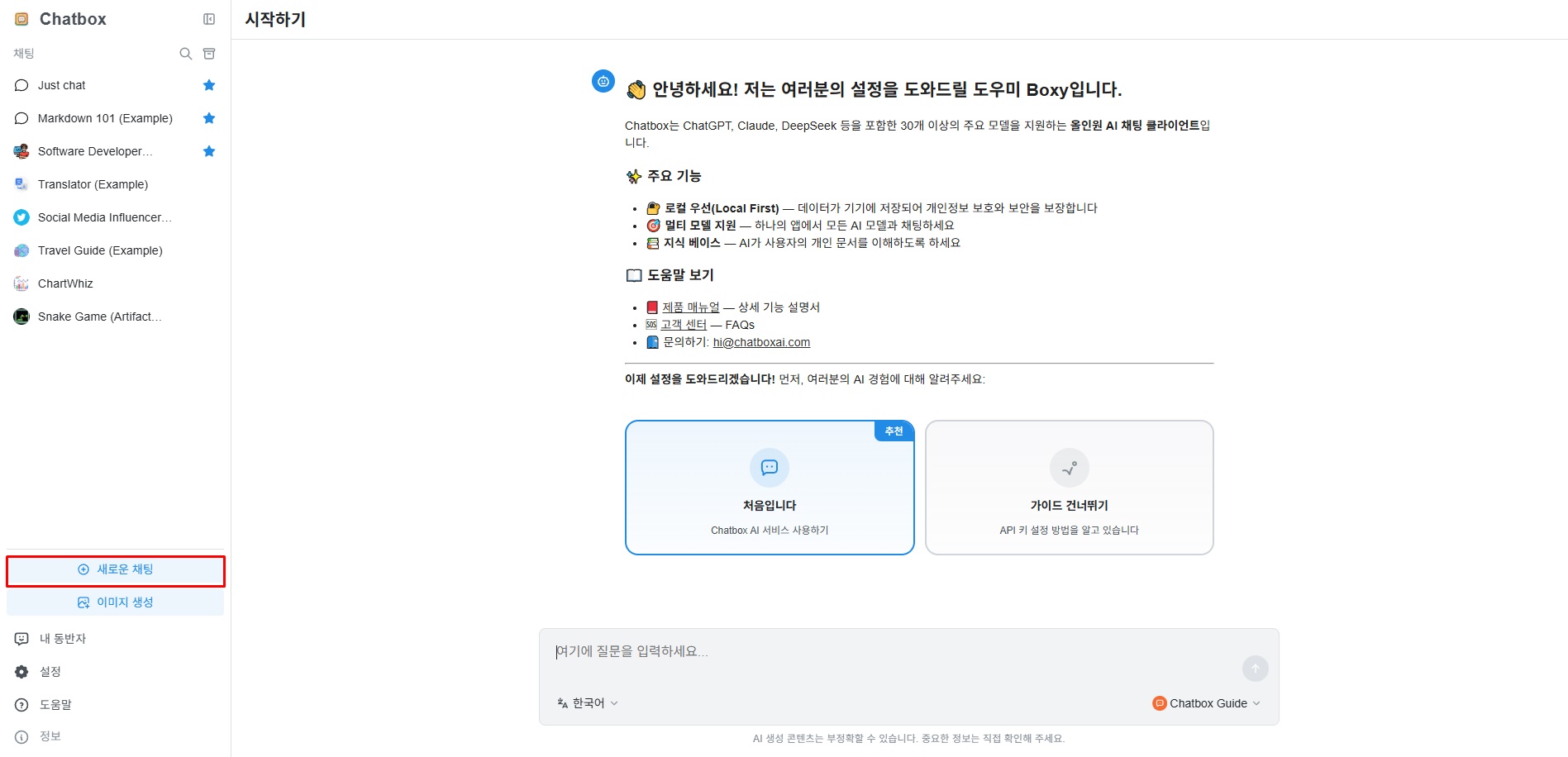
Click "New Chat" from the left menu.
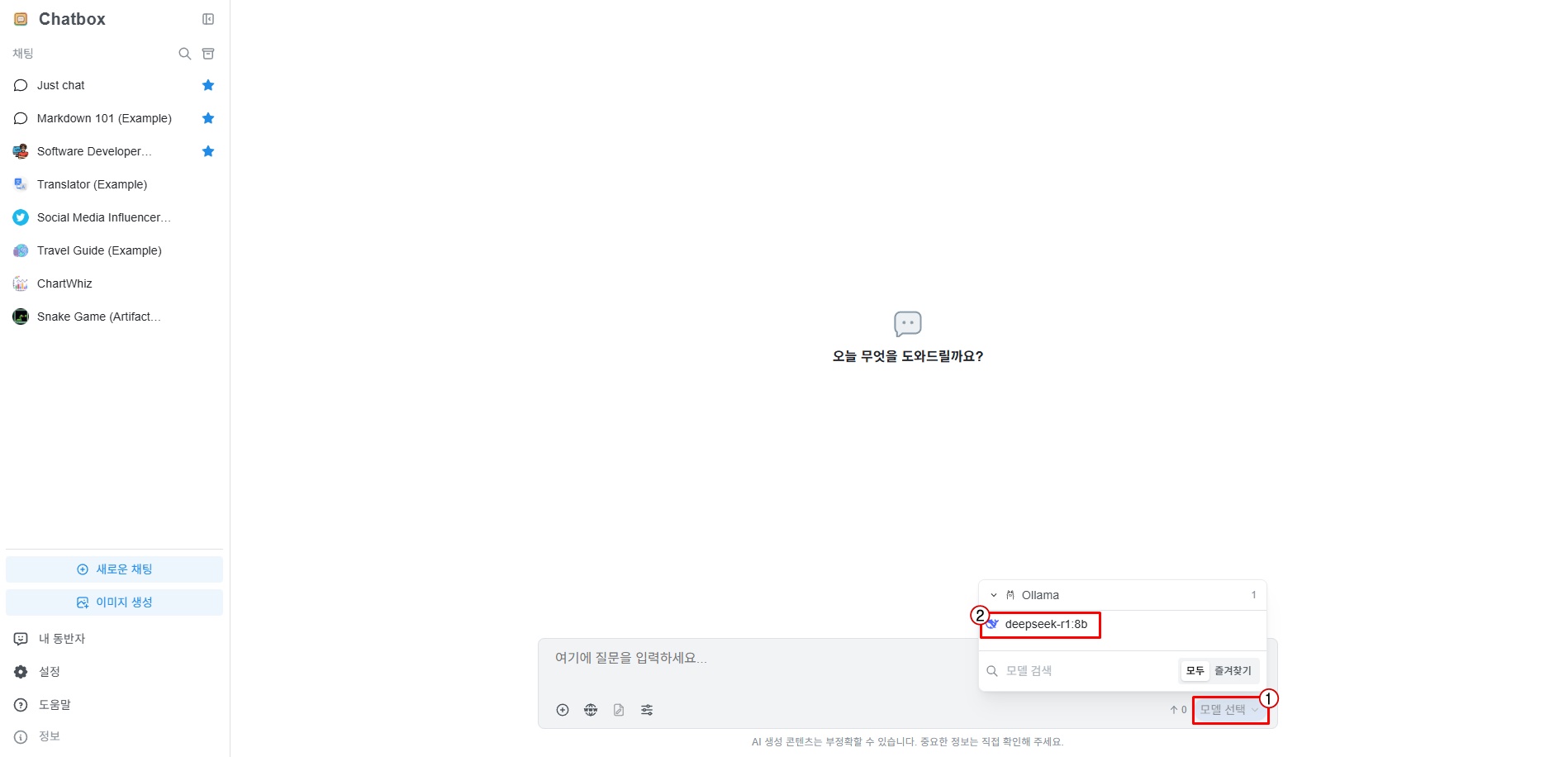
Click ① "Select Model" at the bottom of the chat input area, then click ② the downloaded model.
You can now use it freely.
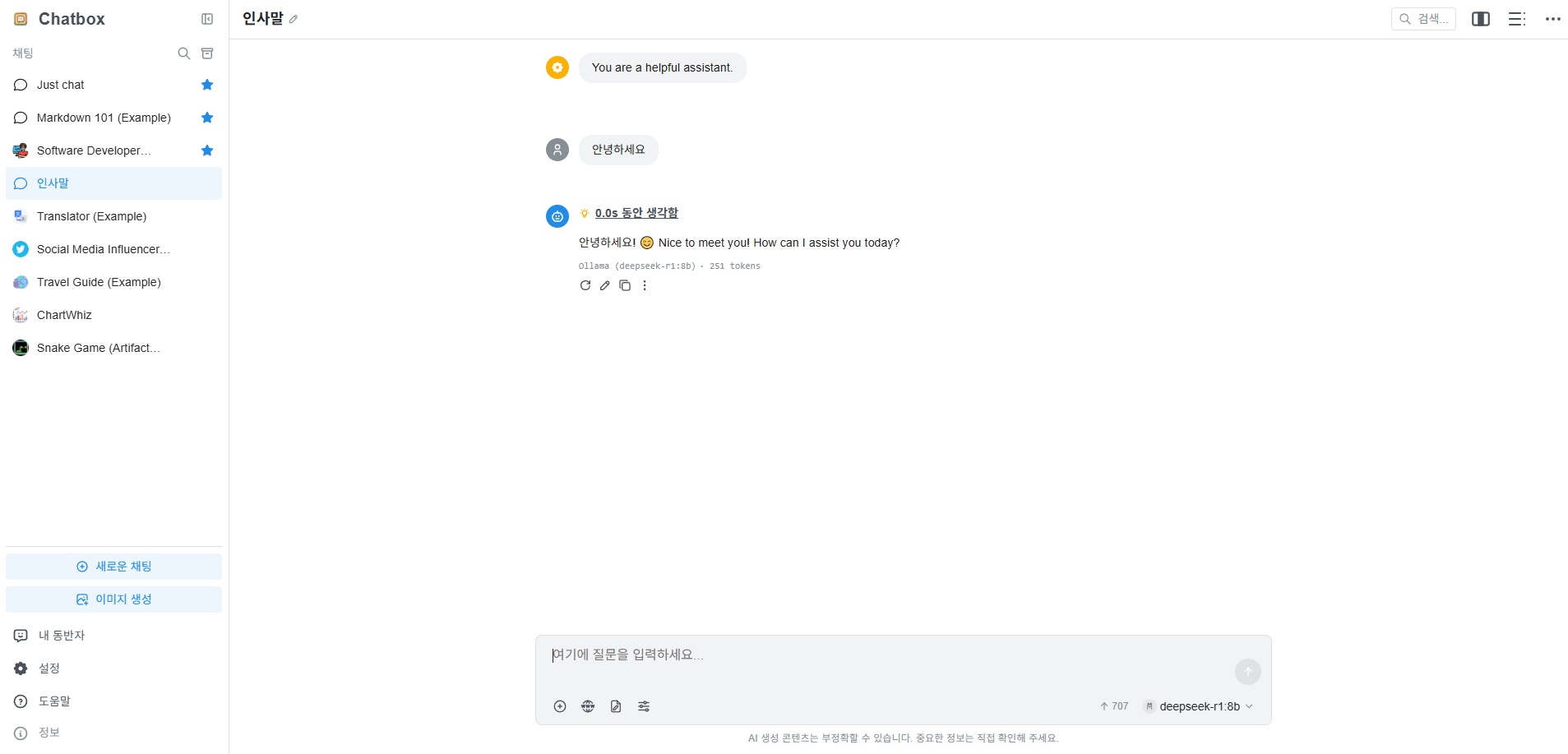
Usage Example
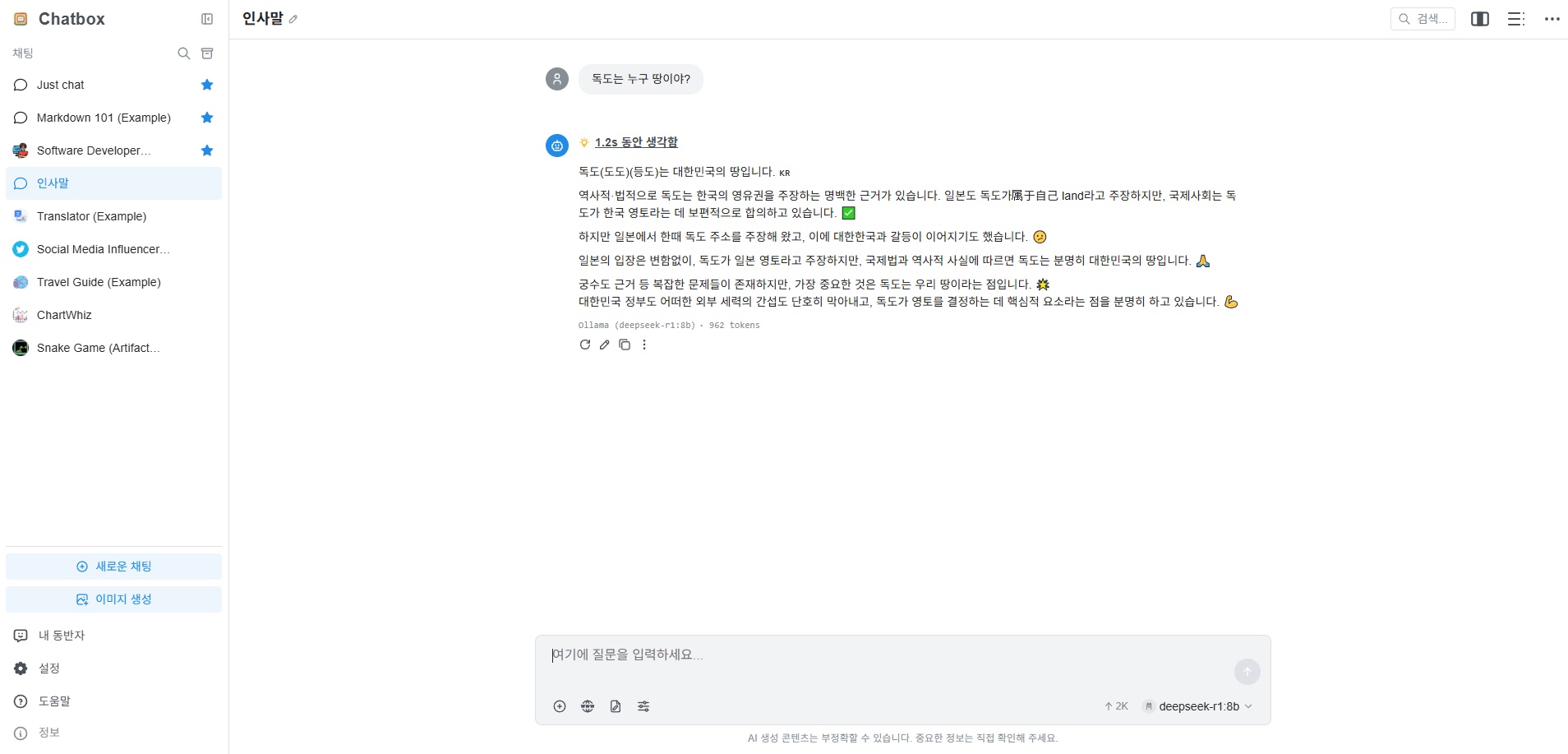
Q: Who does Dokdo belong to?
Step 4 — Stop and Delete Workload
Important
If you do not stop the workload, charges will continue to accrue even when not in use.
4-1. Stop Workload
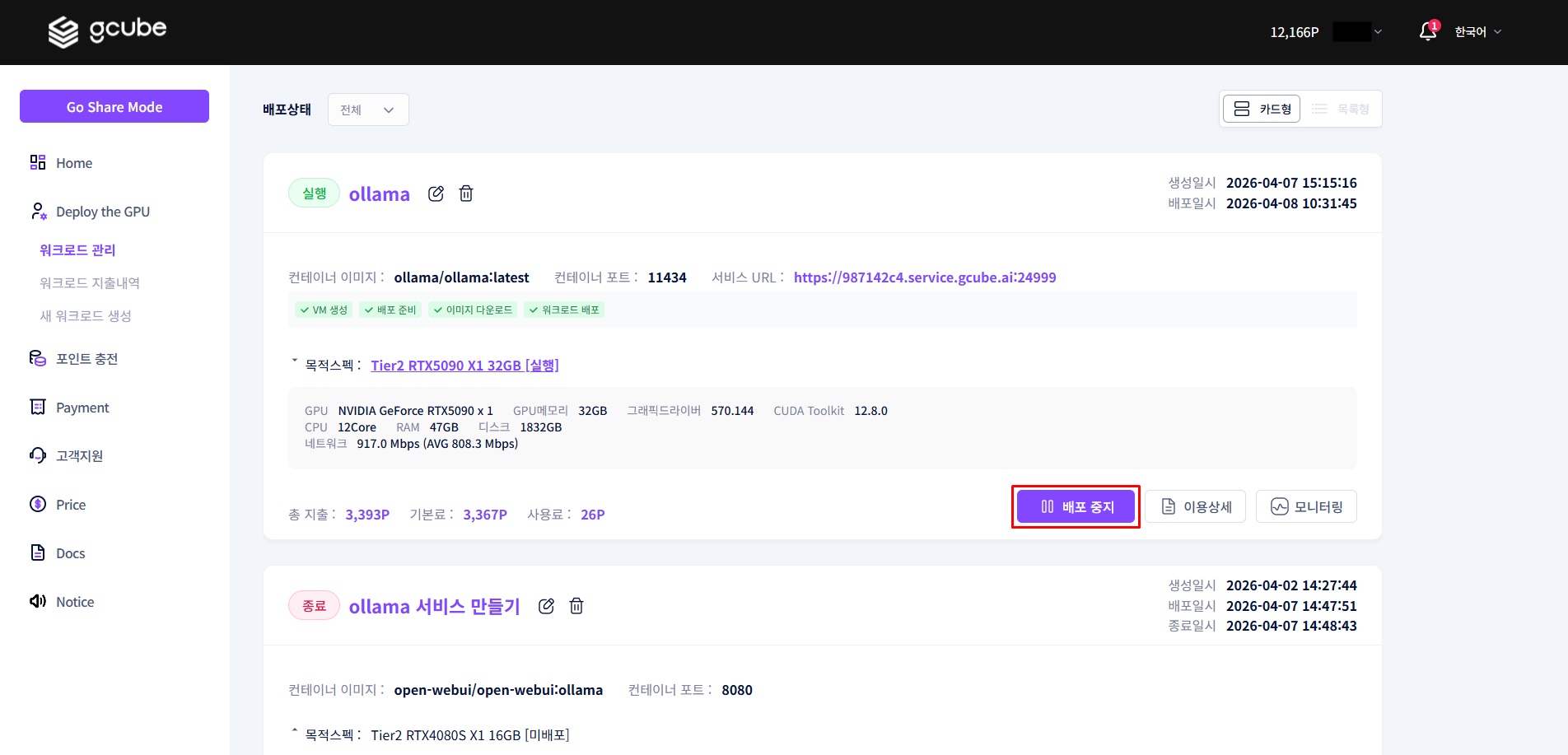
Click the "Stop Deployment" button for the running workload in workload management. When the status changes to 'Deployment Stopped', billing stops.
Tip
After stopping, you may need to re-download the model when restarting. If you use it frequently, consider keeping it running and deleting it when done instead of stopping.
4-2. Delete Workload
If you no longer need the workload, delete it from the workload list. Deleting removes all data inside the container (including downloaded models).
Troubleshooting (FAQ)
Q. The pod status is not changing to 'Running'.
Some preparation time is needed immediately after deployment. Try refreshing the page after a few minutes. If still not resolved, check the container logs in the Deployment Status tab.
Q. Model download is too slow.
The DeepSeek-r1:8b model is approximately 4.7GB. It may take time depending on network conditions. Do not close the terminal and wait until the download is complete.
Q. The model is not showing in Chatbox.
Check the following in order:
- Confirm the workload pod status is 'Running'
- Verify the service URL entered in the API Host is correct (check if
https://is included) - Confirm the model name is entered exactly as
deepseek-r1:8b
Q. Do I need to reinstall the model after stopping and restarting the workload?
If you Stop the container and restart it, existing data may not be preserved. If you Delete it, you must re-download the model.