Workload VS Code Extension Access
Connect remotely to your workload container using the gcube extension in VS Code.
Tip
With the gcube VS Code extension, you can directly access your gcube workload container from your local VS Code environment to edit files, run code, and debug.
Execution Flow Summary
| Step | Description |
|---|---|
| Step 1 | The developer sends a Tunnel Setup request to the gcube Platform via the gcube Extension in VSCode. |
| Step 2 | The gcube Platform creates a Pod on a GPU Node and installs VSCode Server and configures the Tunnel inside the Pod. |
| Step 3 | Once the VSCode Server inside the Pod is ready, it sends the Auth URL and Code needed for authentication to the gcube Extension. |
| Step 4 | Once GitHub authentication is complete, a Tunnel is established between VSCode Server ↔ VSCode Tunnel ↔ GitHub Site. |
| Step 5 | The developer connects to the remote Pod environment through the VSCode Tunnel from their local VSCode. |
Before You Begin
- The workload must be in Deployed status.
- Complete all preparation steps below before proceeding.
Step 1 — Prepare Required Accounts
GitHub Account
Required for the following:
- Creating a Git Repository
- Running GitHub Actions
- Registering GHCR (GitHub Container Registry) images
- Issuing a GitHub PAT token
GitHub PAT Issuance Scopes
Issue using the classic method and check the following scopes: repo, workflow, write:packages, delete:packages
gcube Account
Required for the following:
- Creating workloads
- Allocating GPU resources
- Accessing and running Pods
- Generating service URLs
Note
The gcube Access Token must be requested from an administrator.
Step 2 — Install Visual Studio Code
Download and install from the VS Code official site.
- The latest version is recommended (minimum version: 1.96.0)
- After installation, verify that the Extensions menu is accessible.
Step 3 — Install Required Extensions
Install the following extensions before using the gcube Extension.
| Extension Name | Provider | Version |
|---|---|---|
| Remote - SSH | Microsoft | 0.120.0 |
| Remote - Tunnels | Microsoft | 1.5.2 |
| Remote Explorer | Microsoft | 0.5.0 |
| Container Tools | Microsoft | 2.1.0 |
| Docker Extension Pack | Jun Han | 0.0.1 |
How to install:
- Click the Extensions icon in the left sidebar of VSCode.
- Search for the extension name.
- Click the Install button.
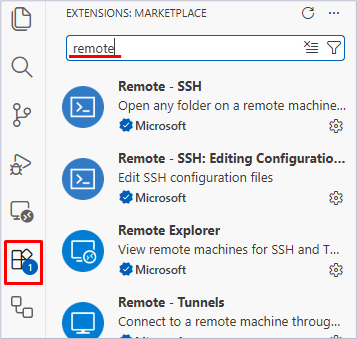
Note
It is recommended to restart VSCode after installation is complete.
Step 4 — Install gcube Extension
- Type
gcubein the VSCode Extensions search bar. -
Find gcube Extension (provider: Data Alliance) and click the Install button.
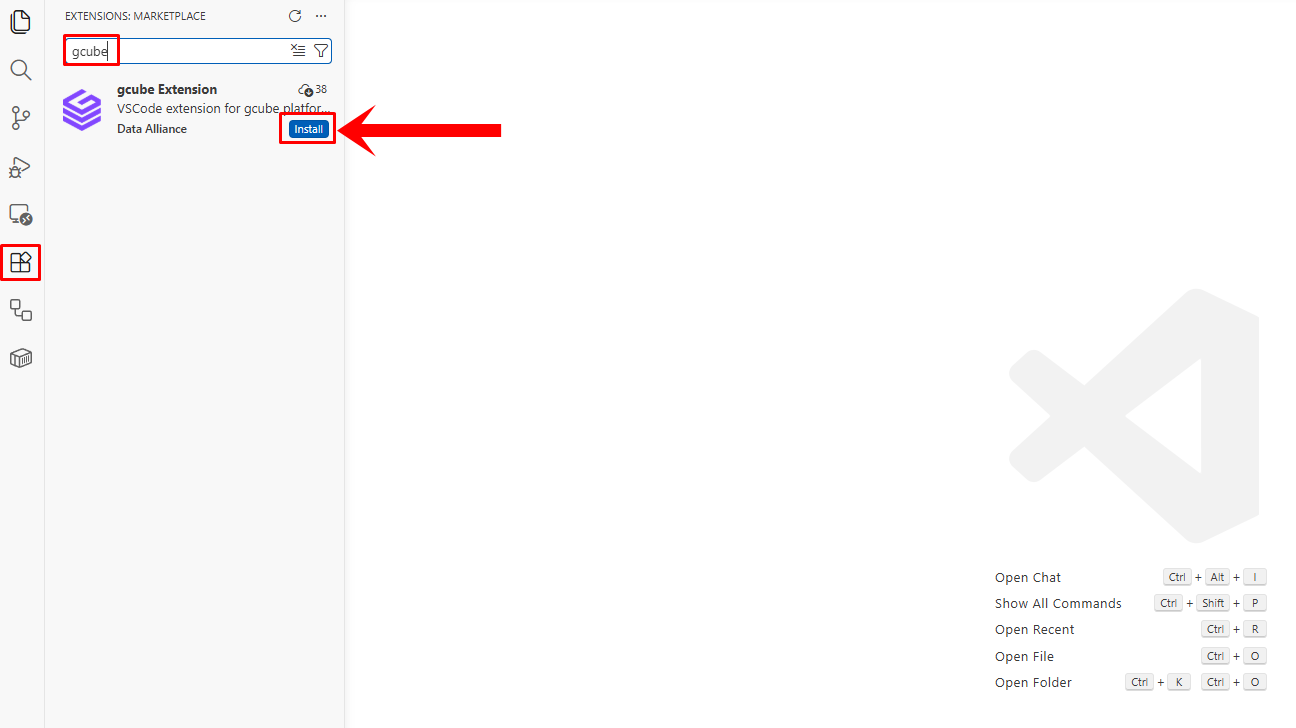
-
Once installed, the GCUBE WORKLOADS menu will appear in the left Explorer area.
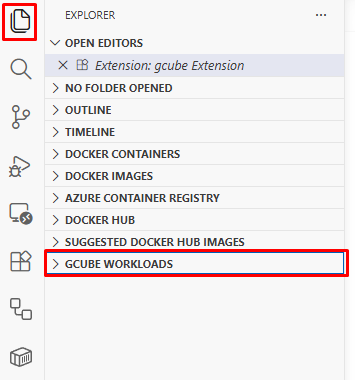
Step 5 — Configure gcube Extension
After installing the extension, complete the initial setup to connect with the gcube platform.
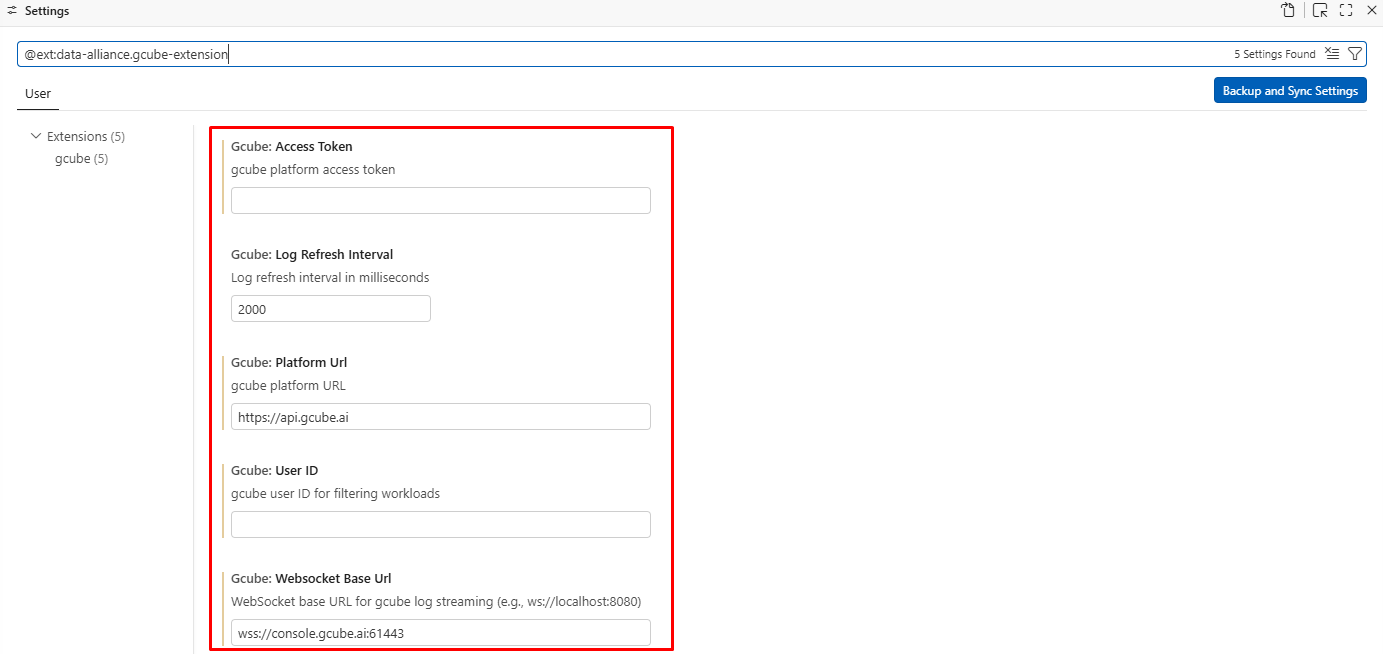
Settings path: Extensions → gcube Extension → Click Manage button → Select Settings
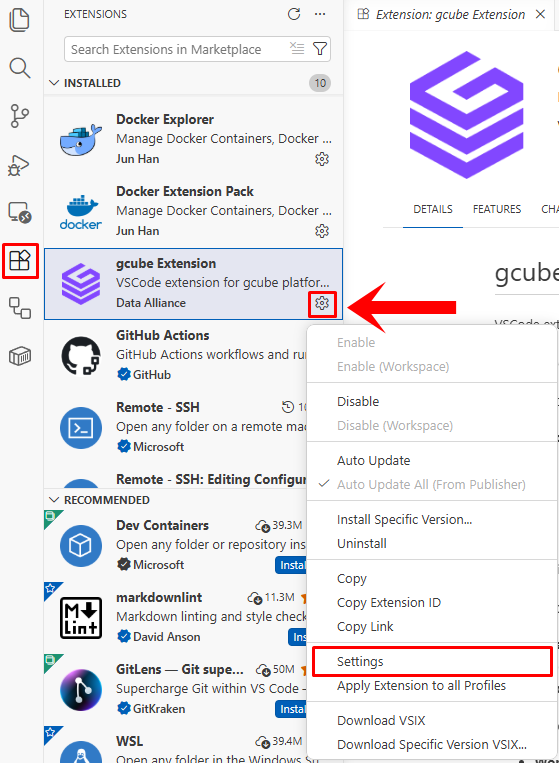
Enter the following items accurately.
| Item | Value |
|---|---|
| gcube User ID | Your gcube personal ID |
| gcube Access Token | Token issued by administrator |
| gcube Platform URL | https://api.gcube.ai |
| gcube Websocket Base URL | wss://console.gcube.ai:61443 |
| Log Refresh Interval | 2000 |
Warning
All items must be entered accurately for a successful connection. Request the Access Token from your administrator.
Step 6 — Verify Setup
When setup is complete, the GCUBE WORKLOADS area will display your existing workload list.
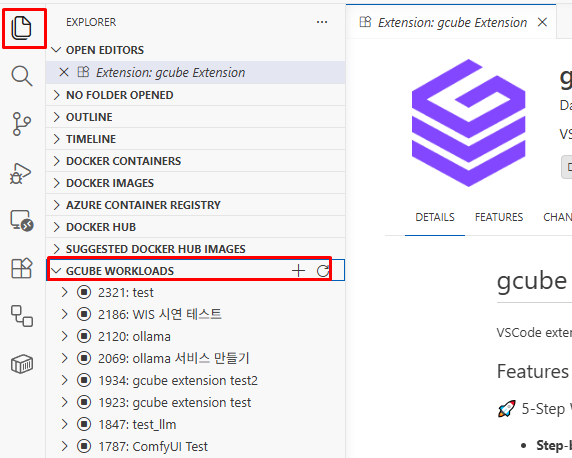
If no workloads appear, refer to the table below to check your settings.
| Issue | Cause |
|---|---|
| Workload list not displayed | Access Token error |
| Connection failure message | Platform URL typo |
| Remote item not shown | Remote - Tunnels not installed |